


Set IPTV is a high-performance media player expertly engineered for modern Smart Television operating systems, making it the premier choice for non-Android TV owners (like those with LG and Samsung devices). This versatile player also extends its compatibility to various Android tablets.
The Set IPTV application functions as a robust streaming client, allowing subscribers to securely integrate their Xtream Codes API subscription. This integration enables users to effortlessly stream our full content library, including:
Live Television Channels (in stunning FHD and 4K quality)
Massive, categorized Movies and VOD (Video on Demand) libraries
Organized TV Series and other multimedia content
As a trusted, official IPTV client, Set IPTV is the recommended app for many popular devices that require a dedicated media player.
| Detail | Specification | Relevance to User |
| Application Name | Set IPTV | The player that runs the service. |
| Key Compatibility | Smart TVs (LG, Samsung, etc.), Android Tablets | Focuses on non-Android TV devices. |
| Connection Method | Supports both M3U and Xtream Codes API | Choose the superior API method for full features. |
| Latest Update | (Sep 1, 2025) | Google favors recently updated content. |
Important Note: The Set IPTV application often requires a one-time activation fee after a brief free trial period. This fee is paid directly to the app developer and is separate from your IPTV subscription cost.
The Set IPTV application is a high-performance streaming solution explicitly designed to simplify access to IPTV services on popular non-Android Smart TVs, such as those running LG WebOS and Samsung Tizen. While it can also be used on Android devices, its primary value is enabling smooth playback on these dedicated Smart TV platforms.
Superior Performance: Utilizes a high-performance video encoder to deliver smooth, buffer-free playback of high-definition and 4K content.
Flexible Connectivity: Supports two main methods for playlist integration: the traditional M3U link and the superior Xtream Codes API method (recommended for full features).
Easy Device Setup: Focuses on a simple, fast installation process that relies on MAC address registration rather than complex file management.
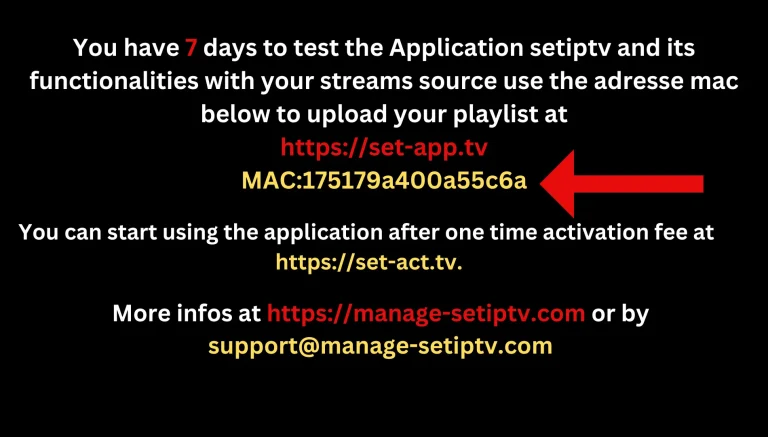
The unique requirement of the Set IPTV application is that your playlist is registered to the app’s unique hardware identifier, known as the MAC Address.
Access the App Store: Navigate to your Smart TV’s App Store (e.g., the LG Content Store or Samsung App Store).
Search and Install: Use the search function to find “Set IPTV” and click the Install button.
Retrieve the MAC Address (Crucial Step): When the app launches for the first time, it will immediately display a unique, 12-character MAC Address on the screen.
Action Item: You must retrieve this MAC address and provide it to your service provider (us) or use it yourself on the official Set IPTV management portal to link your IPTV subscription to the app.
The activation method is simple, relying on an external portal to pair your MAC address with your subscription.
MAC Registration: Your service provider (or you, if self-managing) takes the unique MAC Address you provided and links it to the subscription playlist via the Set IPTV online portal.
Playlist Method: Though the old M3U link can be used on this portal, we strongly advise using the credentials that lead to the superior Xtream Codes API structure. This guarantees EPG and VOD stability.
Optional PIN Protection: The application offers an optional security feature allowing you to set a four-digit PIN that must be entered every time the TV is turned on or the app is launched.
After the playlist has been uploaded via the external portal:
Select the “Upload Playlist” option on the portal.
Restart your Smart TV completely.
When you relaunch the Set IPTV app, it will synchronize with the server, displaying the main menu with clear categories: Live TV, TV Series, and Movies, confirming full access to your subscription.
While the Set IPTV app allows for M3U link activation, we strongly recommend using the Xtream Codes API for the definitive, full-featured experience. This method ensures all your premium services—including the EPG, VOD, and Catch-Up TV—function seamlessly.
The term “Xtream Codes” refers to your unique three-part subscriber credential set. Whether you are a user or a service provider, understanding this structure is vital for successful setup:
| Credential Component | Purpose | Example |
| 1. Panel URL | The secure network address of our streaming server. | http://panel.yourservice.com:8080 |
| 2. Username | Your personalized, unique subscriber login ID. | JohnDoe123 |
| 3. Password | Your secure, private access key. | Abc12345 |
For the User: If you do not have these credentials, please immediately contact your service provider (us). Ask specifically for the Xtream Codes API (or simply your Subscription Details).
For the Provider: You should be intimately familiar with generating these three components from the playlist or IPTV Panel, as this structure is the professional standard for client provisioning.
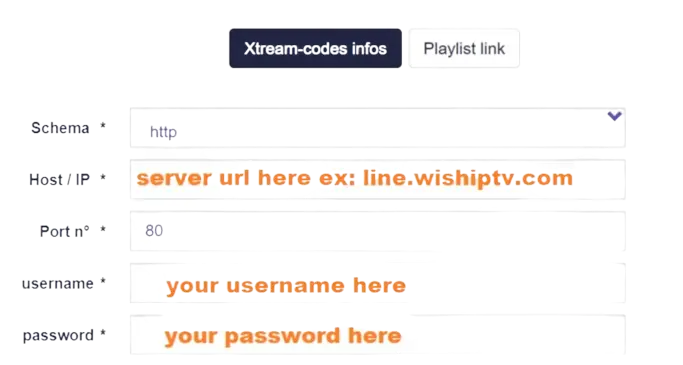
SET IPTV offers two main setup methods: the M3U link method and the Xtream Codes method.
Yes, you can use SET IPTV with external players. Some IPTV services offer the option to use external media players for viewing content. If you prefer a specific media player for its features or interface, you may be able to configure SET IPTV to work with it. However, the ability to use external players may depend on the specific features and compatibility of both SET IPTV and the external player you wish to use.
Yes, some IPTV services offer free trials for SET IPTV. During this trial period, you can test out the service to see if it meets your needs before committing to a subscription. However, availability and duration of free trials may vary depending on the IPTV service provider. It’s best to check with the provider directly to see if they offer a free trial for SET IPTV.
| Question | Answer |
| What is the MAC Address and why do I need it? | The MAC Address is a unique, 12-character identifier assigned to the Set IPTV app on your Smart TV. It is crucial because the Set IPTV developers require you to register this MAC Address on their external portal to link your IPTV playlist to your specific device. |
| Where do I find the Set IPTV MAC Address? | The MAC Address is displayed directly on the screen the very first time you launch the Set IPTV application after installing it from your Smart TV’s App Store (e.g., Samsung or LG). If you miss it, you can usually find it in the app’s settings menu. |
| How do I link my subscription to the Set IPTV app? | You must provide the unique MAC Address to your service provider (us). We then use the MAC Address on the Set IPTV online portal to upload your Xtream Codes API playlist link, effectively activating your service. You simply restart your TV to complete the process. |
| Is the Set IPTV app free to use? | No. Set IPTV typically offers a brief free trial period (often 7 days). After the trial expires, you are required to pay a small, one-time activation fee directly to the app’s developer. This fee is separate from your IPTV subscription cost. |
| Question | Answer |
| Which connection method is best for Set IPTV: M3U or Xtream Codes? | Xtream Codes API is always the superior choice. When using the Xtream Codes method on the Set IPTV portal, you ensure reliable, automatic synchronization of the EPG (Electronic Program Guide) and structured access to the VOD (Video on Demand) section. |
| The app says “Upload failed” or “Check Playlist.” What should I do? | This usually means your MAC Address has not been registered or the playlist link has expired. Please contact our support team immediately, providing your MAC Address again, and we will verify your registration status and relink the playlist. |
| My screen shows a PIN prompt, but I didn’t set one. | If a PIN screen appears, it means the optional PIN security feature was enabled. If you did not set one, contact support; otherwise, you must enter your set PIN to access the channels. |