


Before beginning the installation process for the Net IPTV application, it is essential to perform a quick compatibility check to ensure a smooth, error-free setup on your television.
Net IPTV is a highly versatile player specifically designed for non-Android operating systems typically found on modern Smart TVs.
Supported Devices: The app is fully compatible with most major brands, including Samsung Smart TV (Tizen) and LG Smart TV (WebOS). It is also available on several other models.
Action Item: You must verify that your specific Smart TV model has access to the device’s native App Store (Samsung Apps or LG Content Store). If you can access the store, the application will be available for download.
Once compatibility is confirmed, the first step is simple navigation:
Navigate: Go directly to your Smart TV’s App Store.
Search: Use the search feature to find the “Net IPTV” application.
Prepare: Click the Install button to begin the download.
| Detail | Specification | Relevance to User |
| Application Name | Net IPTV | The player that runs your premium IPTV service. |
| Key Compatibility | LG WebOS, Samsung Tizen, and select Android models. | Optimized for major non-Android TV systems. |
| Category | Entertainment | Where the app is located in the App Store. |
| Installs | 100K+ | Indicates a reliable, popular IPTV client. |
| Latest Update | September 2, 2025 | Ensures you are installing a recently maintained app version. |
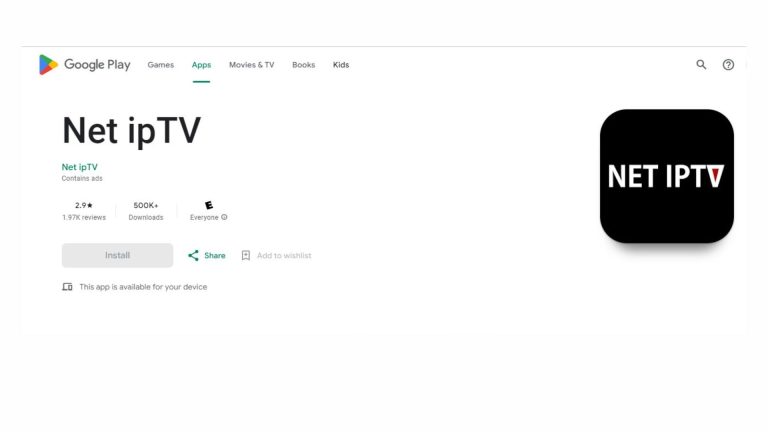
The initial step is to locate and install the Net IPTV application from your television’s native software marketplace.
Open the App Store: Navigate to the dedicated App Store on your Smart TV (e.g., the LG Content Store or Samsung Apps).
Search: Use the remote control’s search function to type in “Net IPTV.”
Install: Locate the official Net IPTV application listing and click the “Download” or “Install” button.
Once the application is downloaded, proceed to the crucial next step: retrieving your unique MAC address. This identifier is essential for us to activate your subscription.
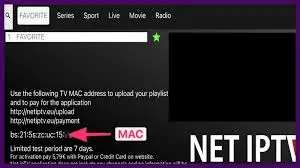
After successfully installing the Net IPTV application, the next critical step is to retrieve the device-specific identifier known as the MAC Address. This address is non-negotiable for linking your subscription.
Launch the App: Open the Net IPTV application on your Smart TV.
Locate the Address: Upon the first launch, the main screen will display a unique, 12-character identifier, usually at the bottom of the screen. This is the MAC Address. It looks similar to: 00:1A:79:XX:XX:XX.
Action Item (Crucial): You must copy or note down this exact MAC Address. This number must be provided to your service provider (us) or entered into the official Net IPTV activation portal to upload your subscription playlist.
Note: Unlike M3U links, Net IPTV uses this MAC Address as a hardware lock, ensuring your premium subscription is securely tied to your specific television.
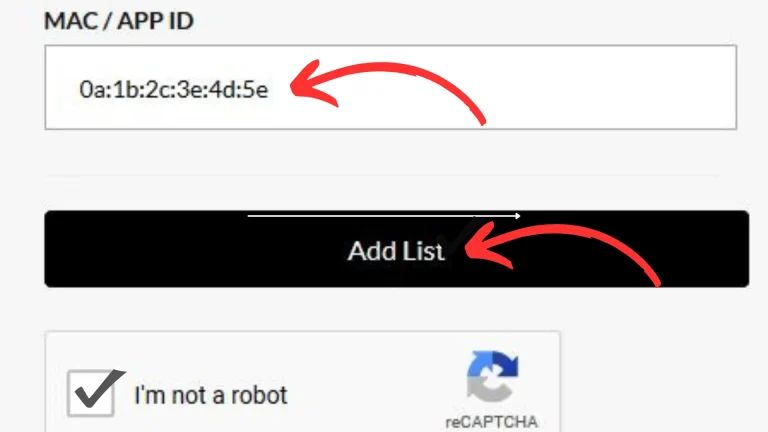
Once you have your MAC Address and the M3U or Xtream Codes URL, the final step on the external portal is to link the two:
On the official Net IPTV management website, enter your unique MAC Address into the designated field. Next, paste your full subscription link into the Playlist field. Click the “Add List” button. This action activates the synchronization process, linking your subscription to the application on your Smart TV.
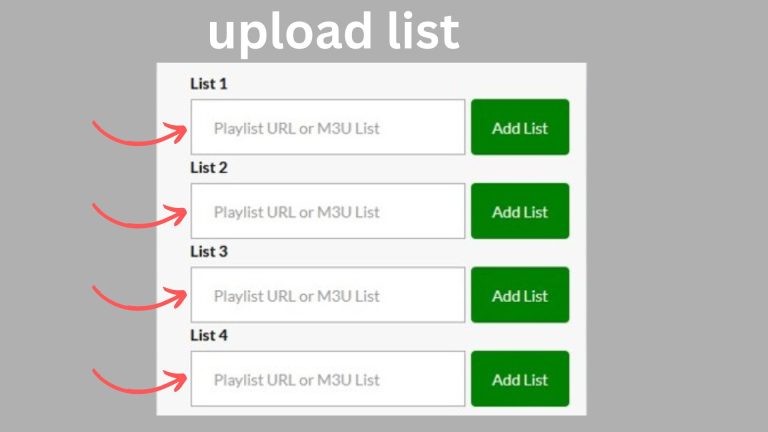
After successfully entering your MAC Address and subscription link (M3U or Xtream Codes) on the external portal and clicking “Add List”, you will encounter the final confirmation screen:
Select Upload Option: The portal will present you with several options, including one specifically for “Upload Playlist.” You must select this option to proceed.
Name Your Playlist: You will be prompted to enter a Playlist Name. You can name this anything you prefer (e.g., “My Subscription,” “Net IPTV Channels,” or even your name). This title will appear within the application on your Smart TV.
Final Confirmation: After entering the desired name and confirming the upload, click the “Activation” or “Save” button one final time.
The system will now process the registration, and your playlist will be officially linked to your Net IPTV application.
Net IPTV operates on a trial period model. If you like the application after the trial, you must pay a one-time activation fee directly to the app developers.
Re-access the Portal: Return to the Net IPTV management website on your computer or phone.
Enter MAC Address: Re-enter your Smart TV’s MAC Address.
Choose Activation: Select the “Activate App” or “Subscription” option (separate from the “Upload Playlist” button).
Select a Plan: Choose the desired long-term plan (e.g., 12-month license).
Payment: Follow the prompts to complete the payment using the provided payment methods. Upon successful payment, the application license is instantly tied to your MAC Address, permanently activating the Net IPTV app on your device.
This is the most critical distinction in your setup: Net IPTV is solely a media player; it is not a content provider.
The App (Net IPTV): This application only provides the framework to play video, stream, and organize your channels. It does not provide any channels, movies, or live content itself. The payment you make to the app developer only covers the software license.
The Content (Your IPTV Service): To receive the actual channels, movies, EPG, and TV series, you must have a subscription (playlist) from an IPTV Service Provider (like us). You will pay the provider separately for this subscription, which is what is linked via the M3U or Xtream Codes URL.
After completing both the Playlist Upload (Step 4) and, if required, the App Activation Payment (Step 5), you must refresh the application to load your content:
Restart the Application: Go back to your Smart TV and fully exit the Net IPTV application, then relaunch it. You can also simply perform a full Smart TV restart.
Synchronization: Upon relaunch, the application will automatically synchronize with the server using your registered MAC Address.
Enjoy Your Service: Your screen will now display the organized content library, typically separated into three main categories: Live TV, Movies (VOD), and TV Series. Select what you want to watch and enjoy your new IPTV service!

| Question | Answer |
| Is the Net IPTV application free to use? | No. Net IPTV is a paid application. It offers a short free trial period (usually 7 days). After the trial, you must pay a one-time activation fee directly to the app developers to keep using the software. This fee is separate from your IPTV subscription cost. |
| Why do I have to pay two fees: one for the app and one for the subscription? | Net IPTV is only the media player (the software that runs the channels). The fee you pay them is for the software license. The second fee you pay is to your IPTV Service Provider (us) to access the actual live TV channels and movie content (the playlist). |
| What payment methods does the Net IPTV portal accept? | The payment methods for the application fee are managed by the Net IPTV developers and typically include standard options like Credit/Debit Card. Check the official Net IPTV activation portal for the exact accepted methods. |
| Do I need to renew the Net IPTV application license? | The license for Net IPTV is typically a one-time activation fee per device (MAC Address). Once you pay this fee, the app is permanently linked to your Smart TV. |
| Question | Answer |
| Where do I find the Net IPTV MAC Address? | The MAC Address is displayed on the main screen immediately after you install and launch the Net IPTV application for the first time on your Smart TV (LG or Samsung). You must copy and note this 12-character ID. |
| My playlist is not loading after I clicked “Add List.” | You must fully restart your Smart TV or completely exit and relaunch the Net IPTV application after submitting your link on the external portal. If the playlist still doesn’t appear, double-check that you entered the MAC Address and the subscription link (M3U or Xtream Codes) correctly on the portal. |
| Which is better for Net IPTV: M3U or Xtream Codes API? | We strongly recommend using the Xtream Codes API if your provider offers it. This method provides superior organization, better stability for the EPG (T |