Setting up your MAG Box for IPTV Dubai is quick and simple when you follow the right steps. This guide will walk you through the complete MAG Box setup process — from connecting your device to configuring your IPTV portal URL. Whether you’re a first-time user or switching to a new IPTV provider, this step-by-step tutorial ensures a smooth installation for uninterrupted streaming in Dubai and across the UAE.
Step 1:
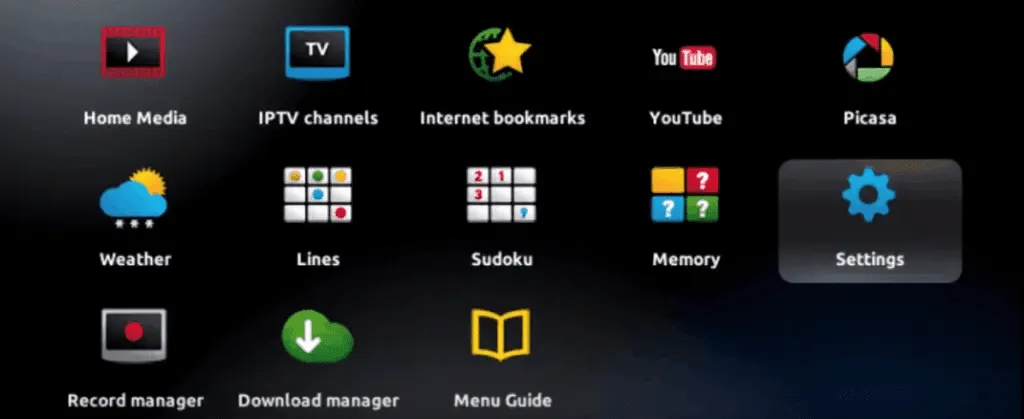
Once your MAG Box has finished loading, the main portal screen will appear. From there, navigate to “Settings” using your remote control, and press the “SETUP” or “SET” button to open the configuration menu.
Step 2:
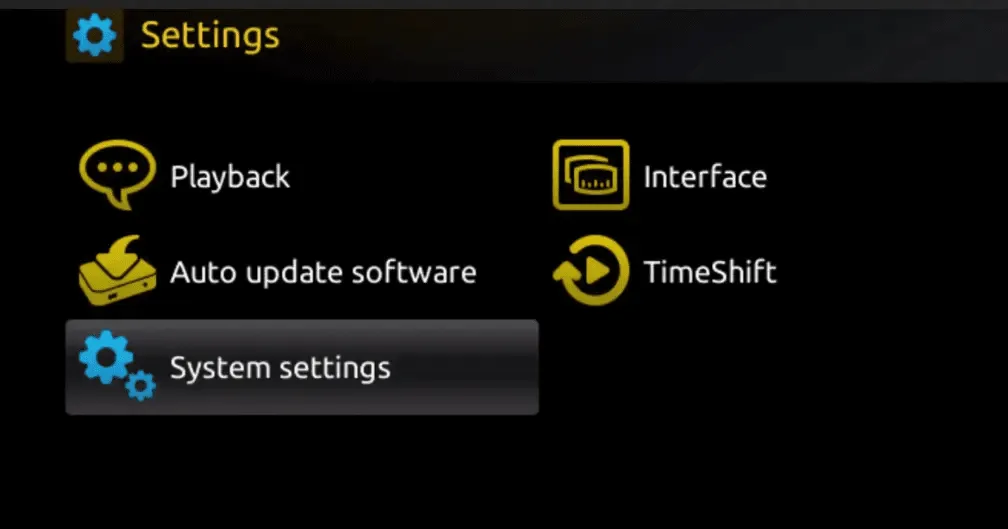
Next, select “System settings “.
Step 3:
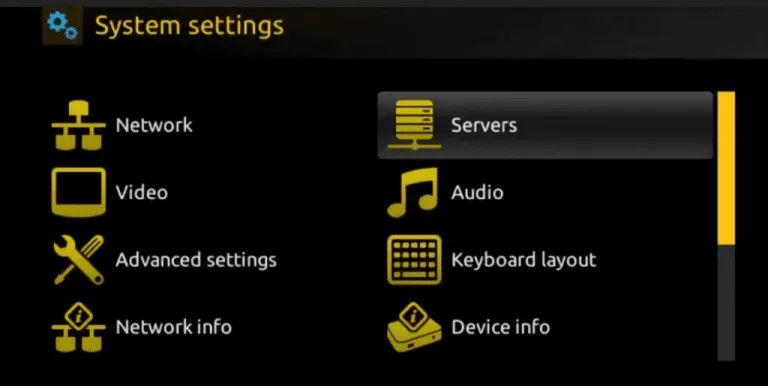
Once in the System settings, click on “Servers “.
Step 4:
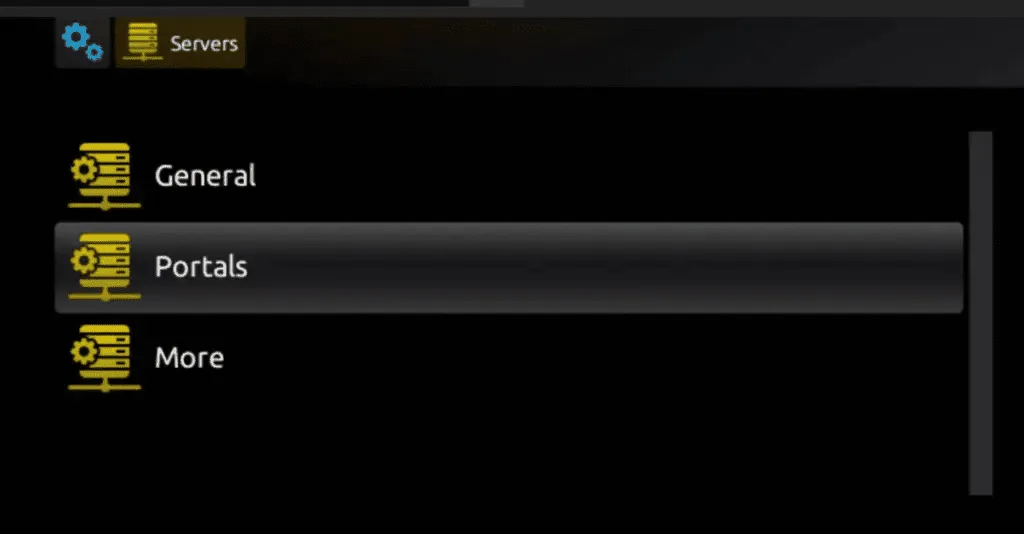
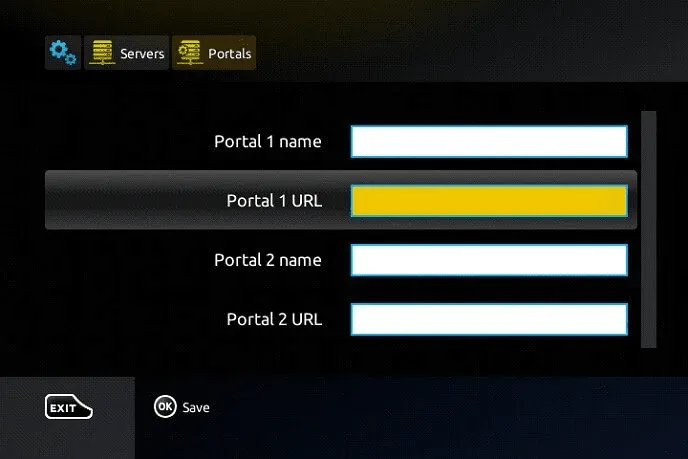
From the Servers menu, select “Portals “.
Step 5:
In the “Portal 1 name” field, enter a name for your portal, and in the “Portal 1 URL” field, enter the corresponding URL for your portal.
To activate your IPTV service on your MAG Box:
Please send us your MAC address (you can find it on the label at the back of your MAG Box) along with your order details. Once received, we’ll remotely activate your IPTV subscription and provide you with a portal URL link to enter on your MAG Box.
Step 6: Click “OK” to save your settings. Step 7: Press “EXIT” on your remote control to return to the main menu. Step 8: Finally, reboot your MAG Box and select “OK” to apply all changes.
Q1. What is a MAG Box used for in IPTV Dubai?
A MAG Box is a set-top device designed to stream IPTV channels, movies, and on-demand content over the internet. It’s ideal for users in Dubai who want a reliable and high-quality IPTV experience.
Q2. Where can I find the MAC address on my MAG Box?
You can find your MAC address on the sticker located at the back or bottom of your MAG Box. It usually starts with “00:1A:79…” and is required to activate your IPTV Dubai subscription.
Q3. What should I do if my MAG Box doesn’t load the IPTV portal?
If your MAG Box doesn’t load the portal, double-check that your internet connection is stable and that you’ve entered the correct IPTV portal URL provided by your service. Then, reboot your device.
Q4. Can I use a MAG Box with Wi-Fi or only LAN cable?
You can use both options. For the best performance, a LAN (Ethernet) connection is recommended, but Wi-Fi also works for IPTV Dubai if the signal is strong.
Q5. How do I reset my MAG Box to factory settings?
Go to Settings > System Settings > Factory Reset. Confirm the action to restore default settings. You’ll then need to re-enter your IPTV Dubai portal URL and reconnect to your network.
Q6. Does the MAG Box support 4K IPTV channels?
Yes, most modern MAG Box models (like MAG 420, 524, and 524w3) fully support UHD and 4K IPTV streaming, as long as your IPTV subscription and internet speed support it.