

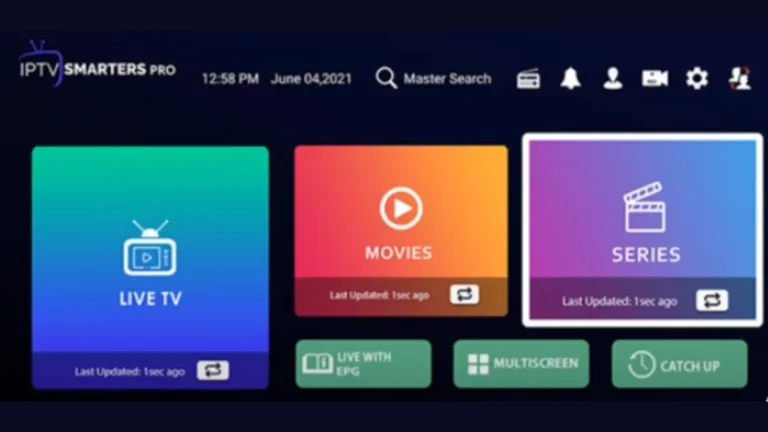
IPTV Smarters Pro is a leading IPTV application that lets users stream live TV channels, movies, and series directly over the internet. Designed for convenience and versatility, it supports multiple platforms, including Android, iOS, and Firestick. With a valid IPTV subscription, users can access thousands of channels and on-demand content from around the world. The app also allows for playlist management, customizable settings, and a smooth, user-friendly interface, making it one of the most popular choices for IPTV viewers in the UAE and beyond.
| Application Name | Smarter Pro |
| Application Version | 3.1.5.1 |
| Size | 84.4 MB |
| Developer | WHMCS SMARTERS |
| Installs | 10M+ |
| Latest Update | October 15, 2025 |
Welcome! In this guide, we’ll walk you through how to install and log in to IPTV Smarters Pro on your iPhone or iPad in just a few simple steps. Follow the instructions below to set up your IPTV app and start streaming instantly.
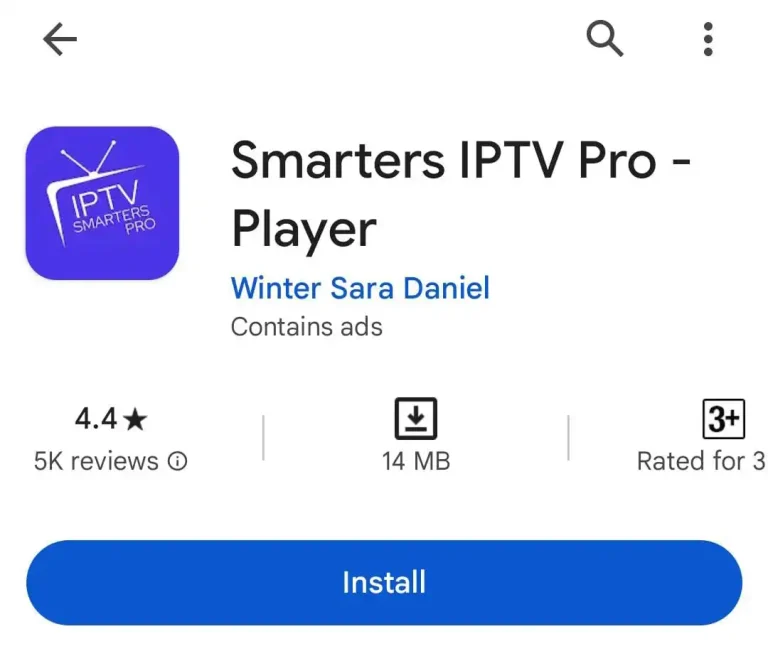
Begin by opening the Apple App Store on your iPhone or iPad. You can either use the direct link provided by us or manually search for “IPTV Smarters Player” or “IPTV Smarters Pro” in the search bar.
Once you find the app, tap “Install” to download it.
👉 For iPhone users, we also recommend trying the 247 Player app — it’s fully optimized for iOS devices and works seamlessly with IPTV services.
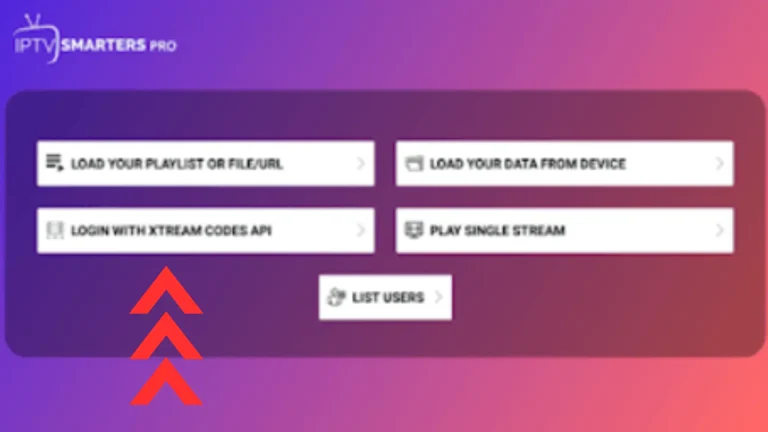
After installing the application from the App Store, open it and you’ll see several login options — such as M3U File, Xtreme Codes API, and others.
We recommend selecting the Xtreme Codes API option for a smoother and more stable setup.
While you can also use the M3U File method, it may occasionally cause minor errors during copy-paste or URL loading. Using Xtreme Codes ensures faster login and better performance.
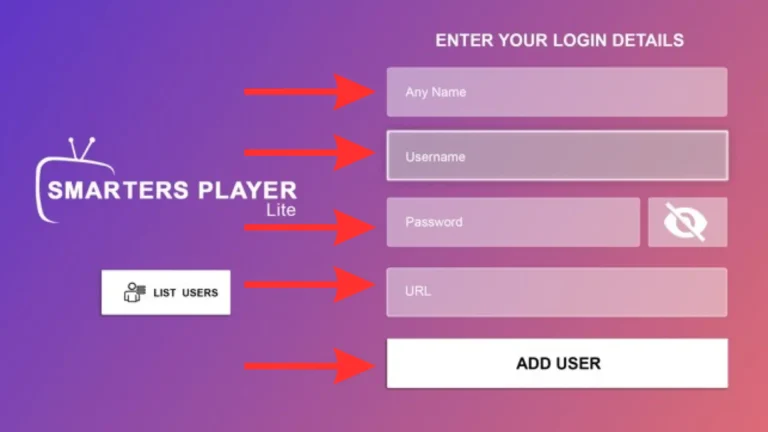
Once the application is installed, it will prompt you to enter your login credentials.
In the first field, type your preferred name (this can be any name of your choice).
In the next three fields, enter the login details (username, password, and server/portal URL) that we provide you.
After filling in all the information correctly, simply click on “Add User” to complete the setup and proceed to your IPTV dashboard.
We’ll provide you with temporary login details that remain active for 6 to 12 hours. During this period, please check whether your desired channels and content are available in your trial account.
If any channel or feature is missing, simply contact our support team — we’ll assign you a new server and verify its stability to ensure smooth performance. Once everything works perfectly, you can let us know which subscription duration you prefer. We offer a variety of flexible plans (daily, monthly, and yearly) that can be activated instantly based on your choice.
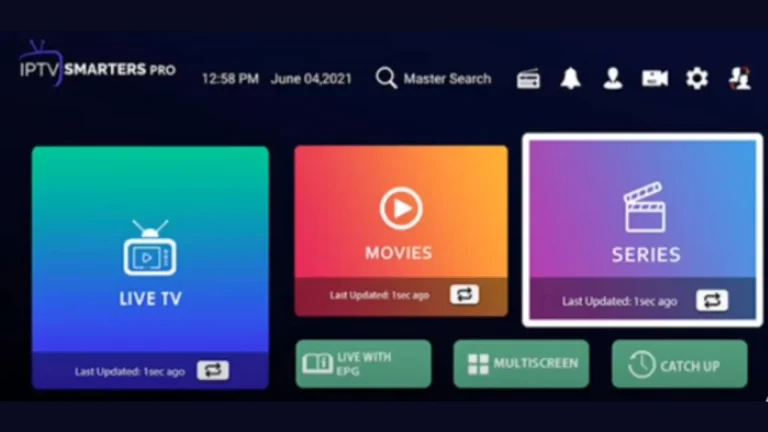
After logging in, make sure to download and sync all three sections — Live TV, Movies, and Series — so your full content library is available for quick access.
There are many IPTV apps available for iPhone such as GSE Smart IPTV, Xtream IPTV Player, and IPTV Streamer — but the best IPTV app for iPhone is IPTV Smarters Pro.
This app is popular due to its:
User-friendly interface
Smooth playback experience
Compatibility with multiple formats
Easy integration with Xtream Codes
IPTV Smarters Pro makes it extremely simple to add your subscription details and start watching instantly.
After installing the IPTV Smarters Pro app on your iPhone:
Open the app and choose “Login with Xtream Codes API.”
Enter your username, password, and server URL (these are provided with your IPTV subscription).
Tap “Add User” to connect your account.
Once connected, your IPTV Smarters Pro app will automatically load your live TV channels, movies, and series.
Inside the IPTV Smarters Pro app, you’ll find three main options:
Live TV
Movies
Series
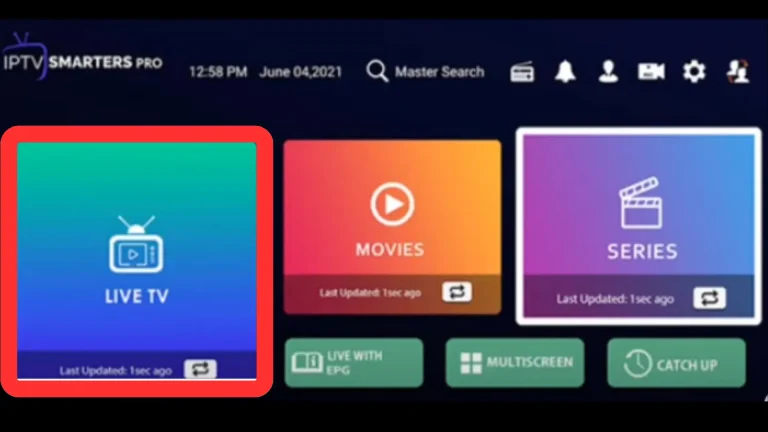
Simply tap on Live TV to explore thousands of channels — including news, sports, documentaries, kids’ entertainment, and more. You can also use the EPG (Electronic Program Guide) to view schedules and switch between your favorite channels instantly.
IPTV Smarters Pro is a popular IPTV app that allows you to stream live TV, movies, and series using your IPTV subscription. It supports M3U and Xtream Codes formats and works on multiple devices, including iPhone, iPad, Android, and Firestick.
Yes. The app itself is free, but you’ll need a valid IPTV subscription from a service provider to access any content. Your provider will give you Xtream Codes or an M3U playlist link to log in.
To install IPTV Smarters Pro:
Open the App Store on your iPhone/iPad.
Search for IPTV Smarters Pro or IPTV Smarters Player.
Download and install the app.
Open it and proceed with the setup steps.
It’s recommended to choose Xtream Codes login because it provides better performance and stability. While M3U links also work, they can sometimes cause copy-paste or loading errors.
Xtream Codes are your IPTV login credentials that connect your app to the IPTV provider’s server. They include:
Username
Password
Server URL
You’ll receive these details from your IPTV provider after purchasing a subscription.
Some IPTV subscriptions require a server synchronization period for stability testing. During this time, your provider ensures all channels and features are working properly before full activation.
After opening the app:
Select Login with Xtream Codes.
Enter your name, username, password, and server URL (provided by your IPTV provider).
Tap Add User.
The app will automatically load your live TV, movies, and series.
If certain channels or content don’t appear:
Contact your IPTV provider to refresh or switch servers.
Check your internet connection.
Make sure the subscription is active and not expired.
That depends on your IPTV plan. Some providers allow multi-device access, while others restrict one device at a time. Always confirm with your provider before using it on more than one device.
These are your main content categories inside the app:
Live TV: Watch real-time TV channels from various countries.
Movies: Access on-demand movies provided by your IPTV service.
Series: Stream your favorite TV shows and web series.
Yes! IPTV Smarters Pro is compatible with Android smartphones, Firestick, Smart TVs, and tablets — with the same login process using Xtream Codes.
Using a VPN (Virtual Private Network) is recommended for a more secure and private streaming experience. It helps avoid geo-restrictions and protects your data from ISP tracking.
Try the following:
Close and reopen the app.
Restart your iPhone/iPad.
Check for app updates in the App Store.
If the problem continues, reinstall the app and re-enter your login details.
Try the following:
Close and reopen the app.
Restart your iPhone/iPad.
Check for app updates in the App Store.
If the problem continues, reinstall the app and re-enter your login details.