

XCIPTV Player is one of the most popular and reliable IPTV player applications used worldwide. Known for its simple interface, smooth performance, and powerful features, it allows users to stream live TV, movies, and on-demand videos directly from their IPTV service provider.
If you’re looking to set up the XCIPTV Player on your Amazon Firestick 4K, this guide will walk you through each step — making installation easy, fast, and completely beginner-friendly.
Please note that XCIPTV Player does not provide any content by default. It is only a media player application.
To start streaming, you’ll need to add a playlist or Xtream Codes credentials from your preferred IPTV service provider.
You can get your playlist or login details from your IPTV provider — including us, if you don’t have one yet.
In this guide, we’re demonstrating the setup process on the Amazon Fire TV Stick 4K Max.
However, XCIPTV Player also works perfectly on:
Amazon Fire TV Stick (2nd, 3rd Gen, Lite, and 4K Max)
Amazon Fire TV Cube
Android Smart TVs
Android TV Boxes
Smartphones & Tablets (Android)
The steps are nearly identical across all devices, with only minor interface differences.
| Application Name | XCIPTV Player |
|---|---|
| Version | 7.0 (910) |
| Category | Entertainment |
| Developer | OTTRUN |
| Installs | 10M+ Downloads |
| Latest Update | April 4, 2025 |
| File Type | APK / Android App |
| Compatibility | Firestick, Android TV, TV Boxes, Smartphones |
The XCIPTV Player is packed with user-friendly and powerful features designed to enhance your IPTV streaming experience. Here are some of its top highlights:
EPG (Electronic Program Guide): View and manage your live TV schedule easily with an intuitive program guide.
Add Channels to Favourites: Quickly save your most-watched channels for instant access.
Custom Video Player Settings: Adjust playback options, subtitles, and display modes for a smoother viewing experience.
Follow these step-by-step instructions to install the XCIPTV Player on your Amazon Firestick 4K, Fire TV Cube, or Google TV device.
Before installing the XCIPTV app, make sure your device is ready:
Turn on your Amazon Firestick 4K or Fire TV.
Connect it to a stable Wi-Fi network.
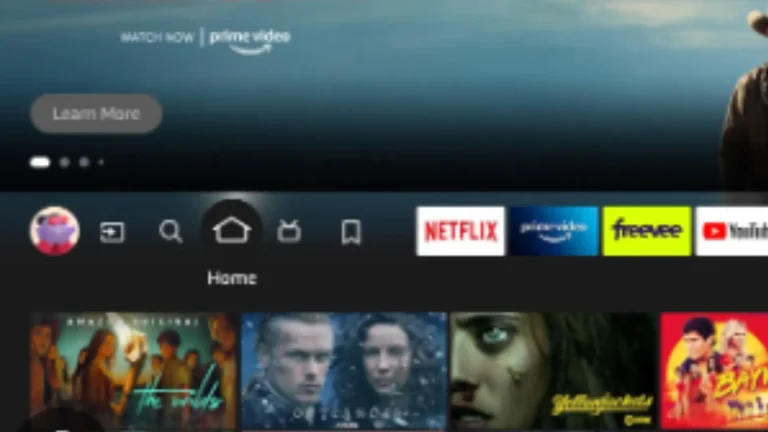
Navigate to the Fire TV home screen, as shown in the image below.
Tip: Ensure your internet connection is strong for a smooth installation process.
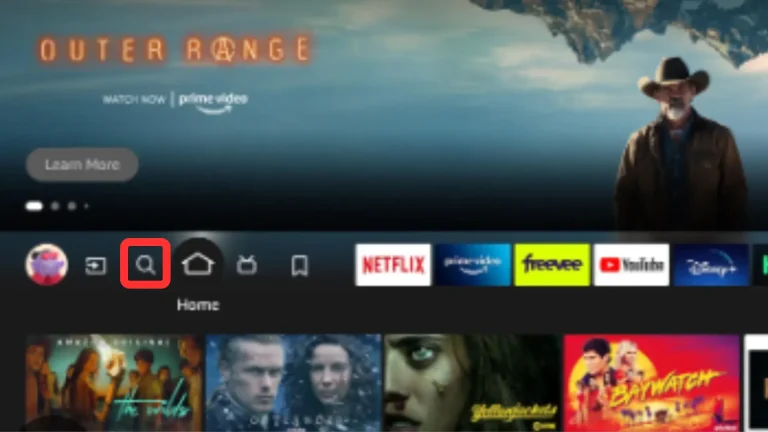
Once your Firestick is on the home screen, the next step is to access the search feature.
Using your Fire TV remote, navigate to the magnifying glass icon 🔍 or the Search option on the top menu.
Click on it to open the search bar — as shown in the image below.
Tip: The Search feature allows you to quickly find and download apps such as XCIPTV Player or any other IPTV app on your Firestick
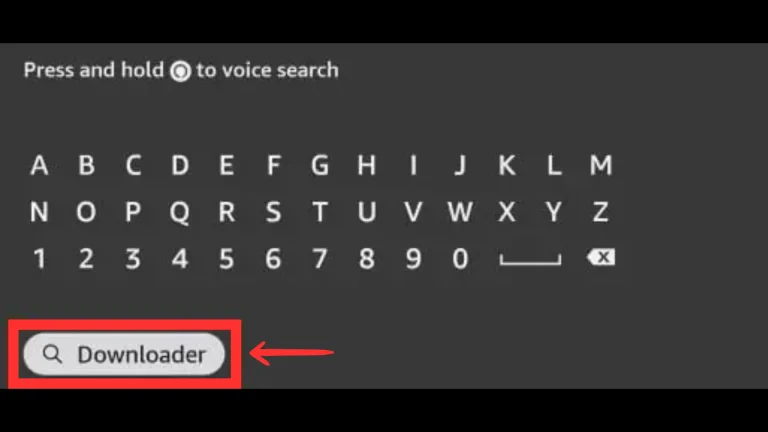
In this step, you’ll need to install the Downloader app — this tool allows you to easily download third-party apps like XCIPTV Player on your Firestick.
In the Search bar, type “Downloader” using your Fire TV remote.
You’ll see the Downloader app appear in the search results (it’s usually the orange icon with a white arrow).
Select the Downloader app from the list — as shown in the image below.
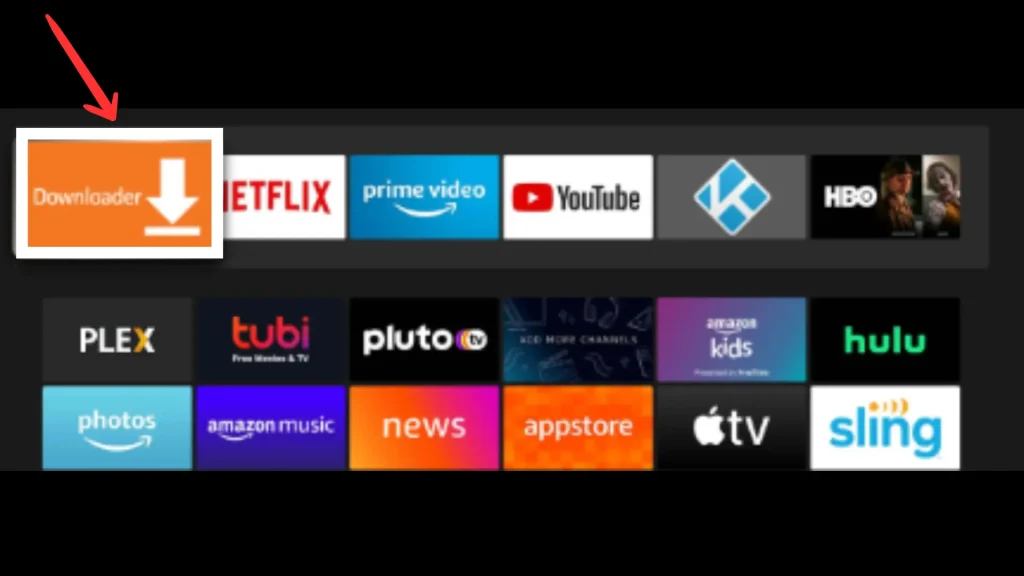
Once the search results appear, you’ll see the Downloader app icon on your screen.
Click on the Downloader app to open its details page on the Amazon App Store.
Here, you can review the app information before downloading. The Downloader app is developed by AFTVnews.com and is completely safe and free to use for installing apps like XCIPTV Player on your Firestick 4K.
Next, click on the Download or Get button, as shown on your screen.
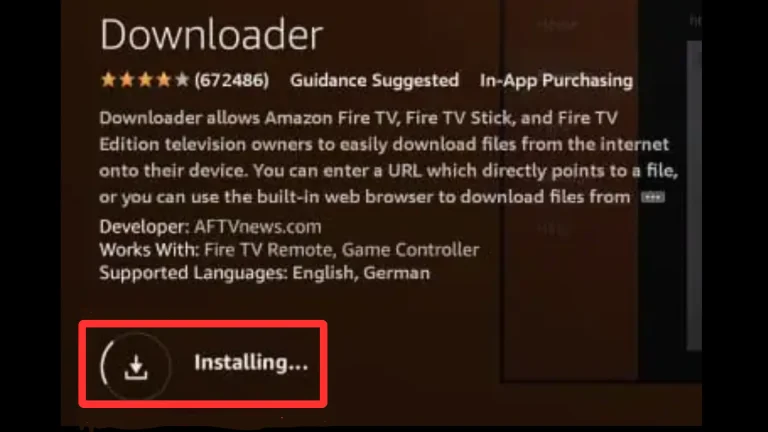
The Downloader app will begin installing automatically on your Firestick 4K.
Once the installation is complete, the app will be ready to launch. This tool is essential for sideloading third-party apps like XCIPTV Player, which are not available directly on the Amazon App Store.
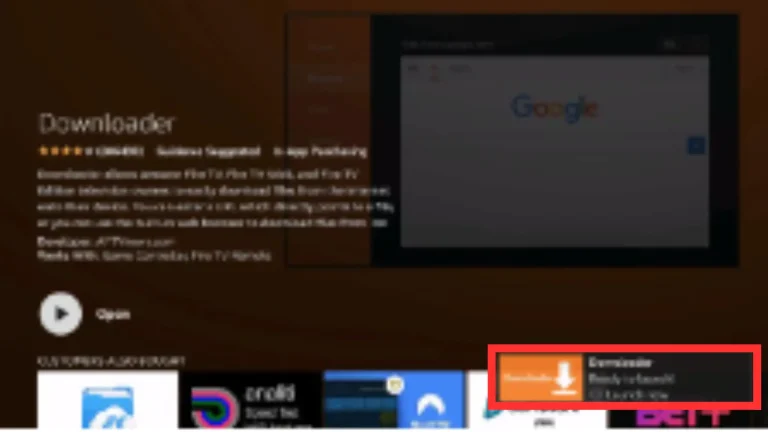
Once the Downloader app has finished installing, you’ll see the option “Ready to Launch.”
Click on “Open” or “Launch Now” to start the app.
After launching, the Downloader will be ready for use — this is the main tool that allows you to install the XCIPTV Player APK on your Firestick 4K quickly and safely.
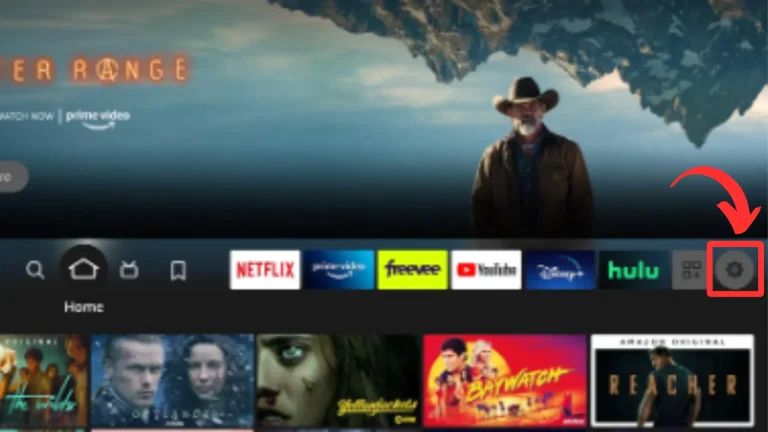
After launching the Downloader app, return to the Firestick home screen.
Navigate to the Settings icon (usually a gear ⚙️) and click on it.
Accessing the Settings menu is essential to enable the installation of apps from unknown sources, which is required for installing XCIPTV Player on your Firestick 4K.
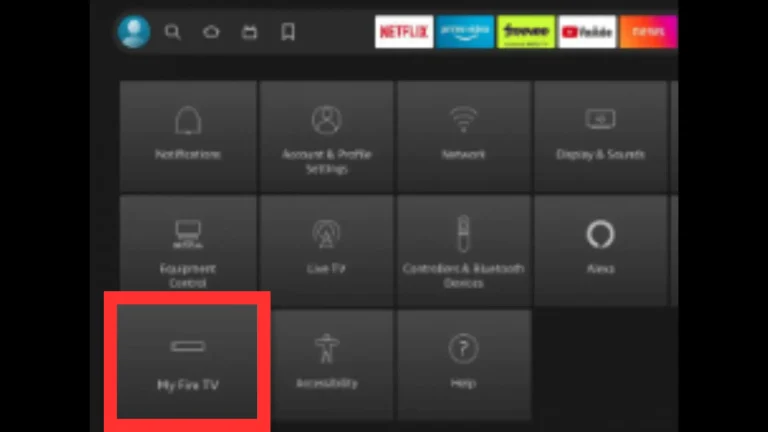
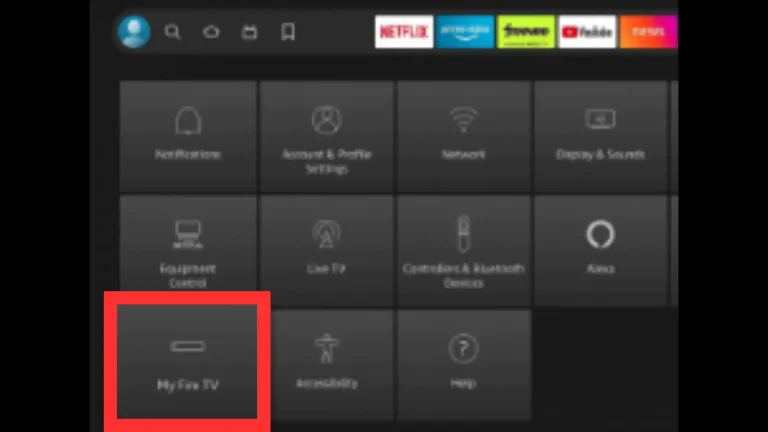
After clicking on the Settings icon, you will see a menu interface.
Scroll down and select “My Fire TV” (sometimes labeled as Device or System on older models).
This section allows you to manage developer options, install apps from unknown sources, and perform updates — all necessary steps for installing the XCIPTV Player on your Firestick 4K.
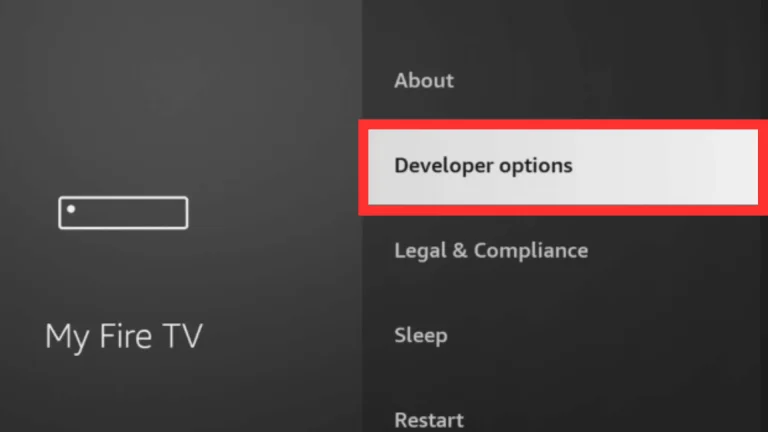
Inside the My Fire TV menu, scroll down and select Developer Options.
This menu lets you enable apps from unknown sources, which is a required step to install third-party applications like XCIPTV Player on your Firestick 4K.
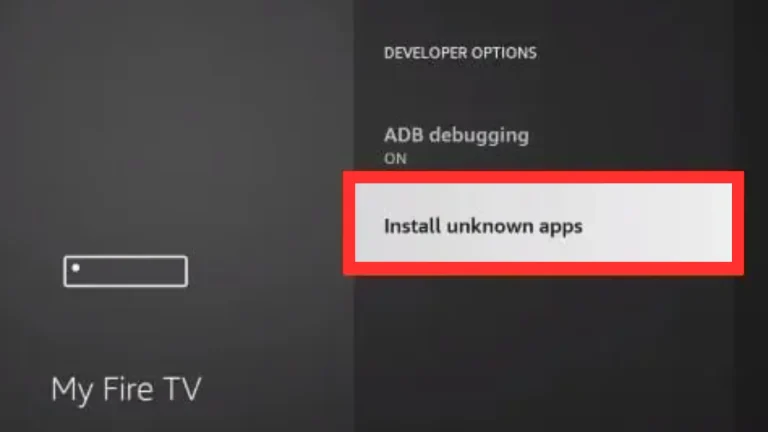
Within the Developer Options menu, click on “Install Unknown Apps.”
This setting allows your Firestick 4K to install third-party applications, such as the XCIPTV Player APK, that are not available on the Amazon App Store. Make sure this option is turned ON for the Downloader app to proceed with the installation.
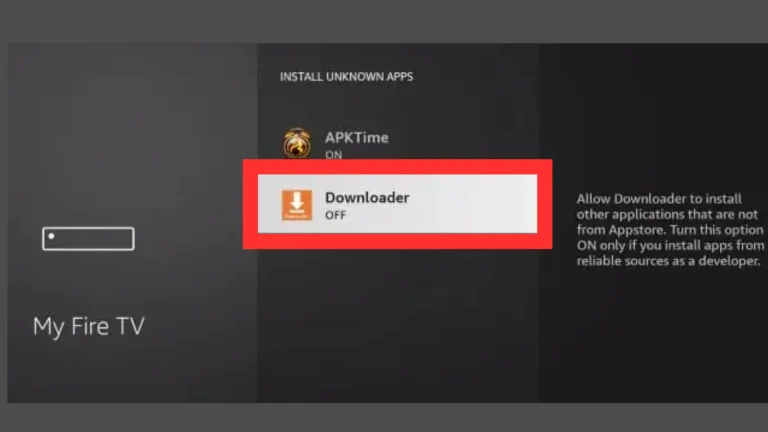
After opening Install Unknown Apps, scroll through the list and find the Downloader app.
Click on it and toggle the switch to ON.
This enables the Downloader app to install third-party applications like XCIPTV Player on your Firestick 4K safely.
If you don’t see the Developer Options on your Firestick or Fire TV device, follow these steps to make it visible and proceed with the installation of XCIPTV Player:
From the Settings menu on your Firestick, scroll down and select My Fire TV (or Device/System on older models).
This menu will allow you to access important settings and prepare your device for enabling unknown sources.
After entering My Fire TV, click on the About option.
You’ll see an interface displaying information such as My Fire TV, About, Legal & Compliance, Restart, and other device details.
This section is necessary for accessing advanced options that help make Developer Options visible on your Firestick 4K.
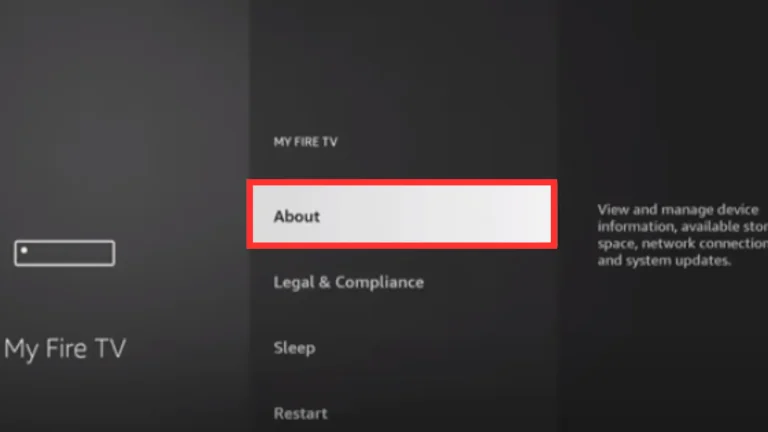
Inside the About menu, locate and select the Fire TV Stick option.
Next, press the center/circle button on your Fire TV remote seven times.
This action will unlock the Developer Options menu, allowing you to enable Install Unknown Apps and proceed with installing XCIPTV Player on your Firestick 4K.
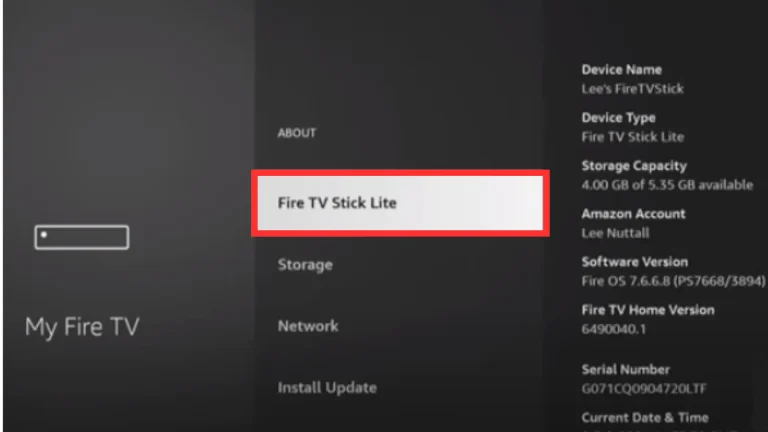
After pressing the Fire TV Stick option seven times, the Developer Options menu will now be enabled on your device.
Return to your Firestick home screen to continue with the installation process.
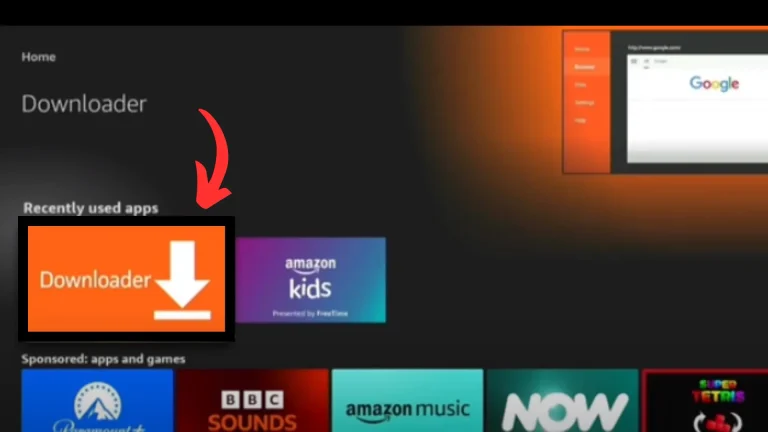
From the home screen, locate the Recently Used Apps section.
Click on the Downloader app to launch it, as this tool will allow you to download and install the XCIPTV Player APK safely.
Once the Downloader app opens, you’ll see an interface with a URL input field.
Enter the official XCIPTV Player APK URL into this field carefully.
This step ensures you download the latest and safe version of XCIPTV Player directly to your Firestick 4K.
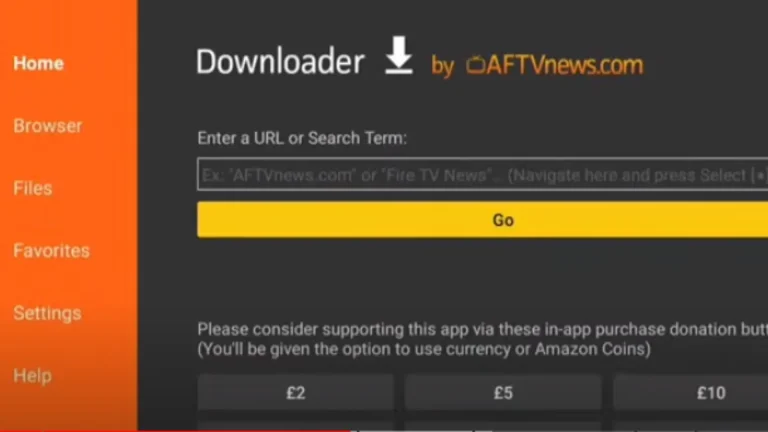
After entering the XCIPTV Player APK URL in the Downloader app, click on the Go button below.
This will initiate the download of the XCIPTV Player APK directly onto your Firestick 4K, preparing it for installation.
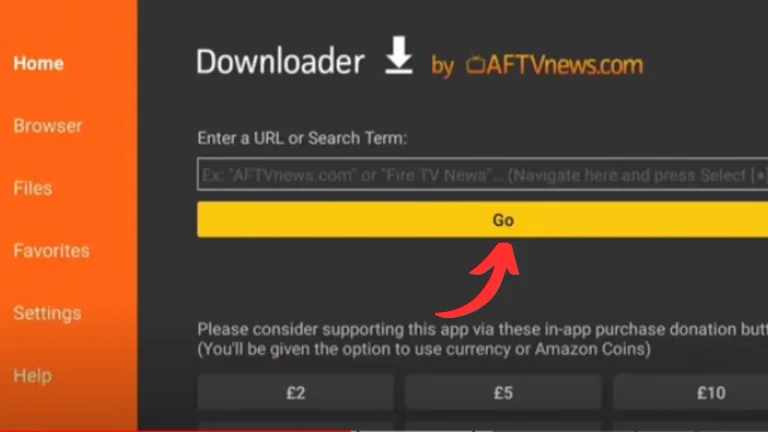
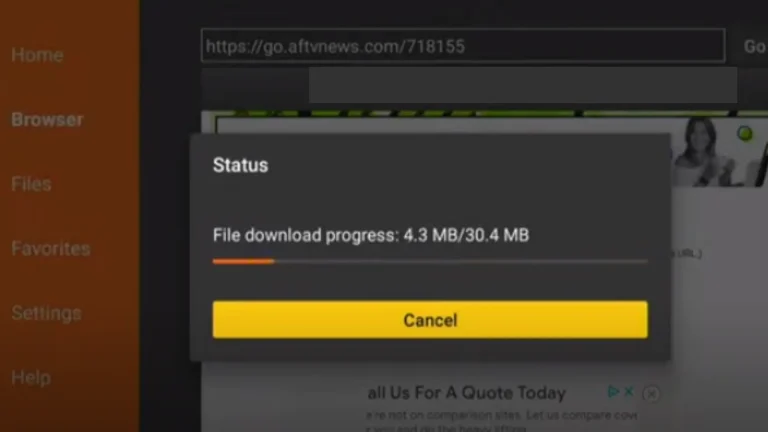
Once you click Go, the XCIPTV Player APK will start downloading.
Wait patiently until the download is fully completed.
Make sure your internet connection is stable during this process to avoid any interruptions.
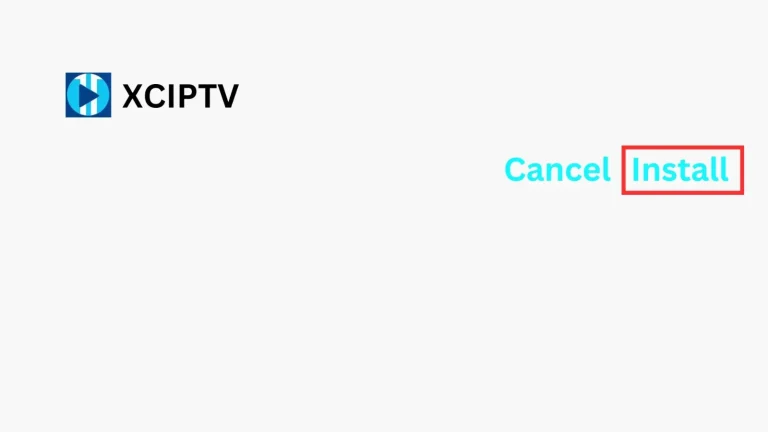
After the APK file has finished downloading, click on the Install button.
This will begin the installation process of the XCIPTV Player on your Firestick 4K, allowing you to access IPTV content once the setup is complete.
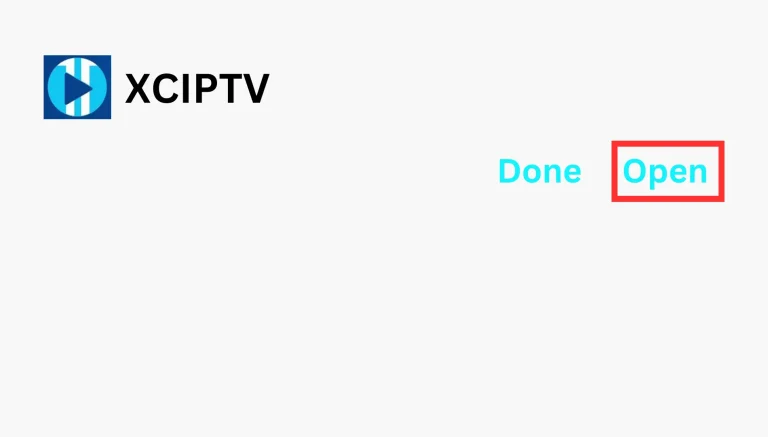
After the installation is finished, click on the Open button.
This will start the XCIPTV Player on your Firestick 4K, allowing you to add your IPTV playlists and immediately begin streaming live TV, movies, and series.
After launching XCIPTV Player, click on the Xtream Codes option.
This will allow you to enter your IPTV service credentials (username, password, and server URL) to access live TV channels, movies, and series on your Firestick 4K.
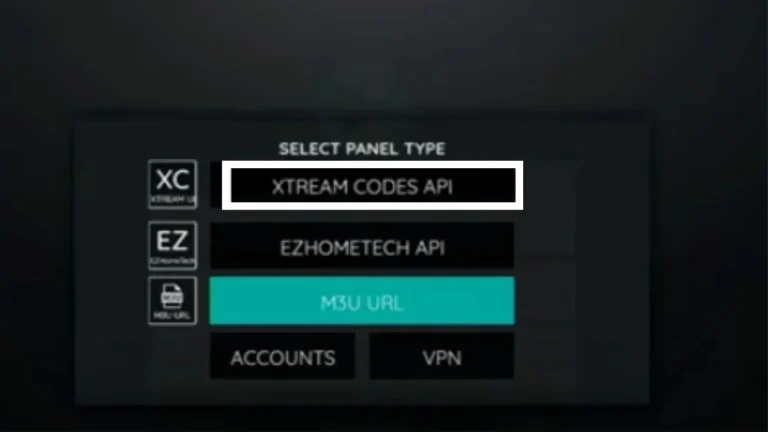
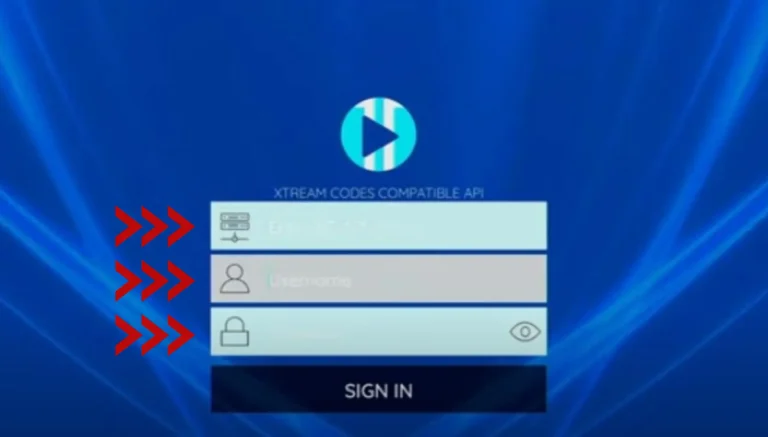
After selecting Xtream Codes, you will need the login credentials from your IPTV service provider. This includes:
Username
Password
Server URL
Carefully enter all the details into the XCIPTV Player fields and then click on Sign In.
Once done correctly, you’ll gain access to live channels, movies, and series on your Firestick 4K.
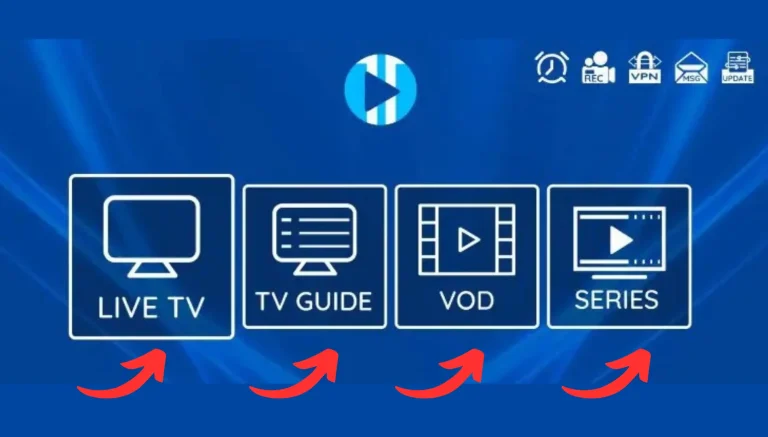
After clicking Sign In, the XCIPTV Player interface will load, displaying your Live TV channels, Video on Demand (VOD) content, and series.
You can now browse through your IPTV content and start streaming directly on your Firestick 4K.
A: XCIPTV Player is a popular IPTV app that allows you to stream live TV, movies, and series using IPTV playlists or Xtream Codes on devices like Firestick 4K, Fire TV Cube, Android TV, and smartphones.
A: You can install XCIPTV Player by enabling Developer Options on your Firestick, installing the Downloader app, entering the official XCIPTV APK URL, downloading it, and then following the on-screen installation steps.
A: Yes, XCIPTV Player itself does not provide content. You need an IPTV subscription or playlist from a service provider to stream channels, movies, or series.
A: Yes, XCIPTV Player is compatible with Fire TV Cube, Android TV, TV Boxes, and smartphones. The setup steps may slightly vary depending on the device.
A: After installing XCIPTV Player, choose Xtream Codes or M3U playlist option, then enter your username, password, and server URL provided by your IPTV service provider to start streaming.
A: Yes, as long as you download the official XCIPTV APK from a trusted source and enable Developer Options safely, the app is secure to use.
A: Yes, XCIPTV Player provides access to Live TV channels, Video on Demand (VOD), and series all within the same interface.