

The IBO Player Pro application stands out as one of the best and most robust media players available for modern Smart TVs today. It offers a smooth, reliable streaming experience for your IPTV subscription.
IBO Player Pro is quickly becoming the preferred choice for users, particularly those on Samsung Tizen and LG WebOS devices. It serves as an excellent, fully featured alternative for those who previously relied on the now-discontinued or removed Duplex Play application. IBO Player Pro ensures you regain all the high-performance streaming features you need.
It is extremely important to understand the role of this application:
IBO Player Pro is solely a media player. It is a video client designed to stream the content provided to it. The app does not provide any channels, VOD libraries, or live content itself.
To get the actual channel list, movies, and TV series, you must have a valid IPTV subscription (playlist) from a trusted provider (like us). Please read the complete guide below to learn how to activate the player with your subscription details.
| Detail | Specification | Relevance to User |
| Application Name | IBO Player Pro | The modern media player for your Smart TV. |
| Key Compatibility | LG WebOS, Samsung Tizen, and Android. | Optimized for major non-Android TV systems. |
| Developer | vuproapp | Reliable, frequently updated developer. |
| Installs | 400K+ | A popular choice among IPTV users. |
| Latest Update | September 10, 2025 | Ensures you are installing a current and maintained version. |
To successfully activate your service, you must first link your IBO Player Pro application’s unique identifier (the MAC Address) to your IPTV subscription on the official IBO Player Pro website.
Install and Launch: After installing the IBO Player Pro application from your Smart TV’s App Store, launch the app.
Locate Credentials: The first screen that appears will display two unique identifiers for your device:
MAC Address: A 12-character code (e.g., 00:1A:79:XX:XX:XX)
Device Key: A short alphanumeric code.
Action Item: Write down or take a clear photo of both the MAC Address and the Device Key. You will need both codes in the next step.
Open the Management Site: On your mobile phone or computer, visit the official IBO Player Pro management website: https://iboplayer.pro/.
Navigate to Activation: Once on the website, look for and click the “Manage Playlist” option. This is where you will input your codes and subscription details.
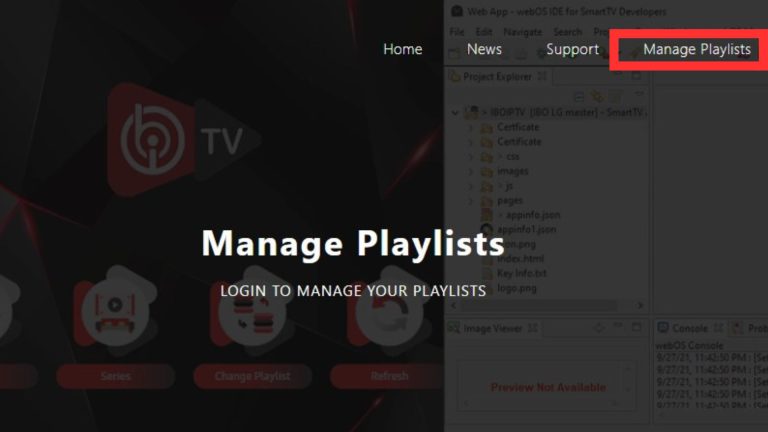
After clicking “Manage Playlist” on the IBO Player Pro website, you will be taken to the management dashboard. This is where you link your unique device identifiers to the service.
Input Your MAC Address: In the designated field, carefully enter the MAC Address that was displayed on your TV screen.
Input Your Device Key: In the corresponding field, enter the Device Key shown next to the MAC Address.
Establish Connection: Submitting this information establishes the unique connection between the IBO Player Pro app on your Smart TV and the external management portal, allowing you to proceed with adding the playlist.
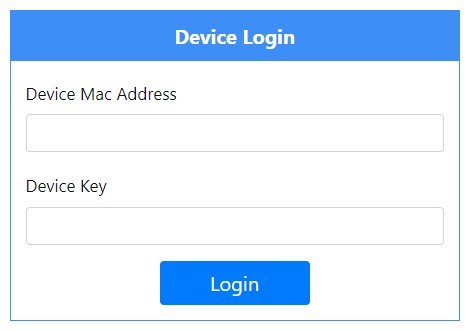
Once you have successfully entered the MAC Address and Device Key, the portal will grant you access to the playlist management section, where you will link your subscription.
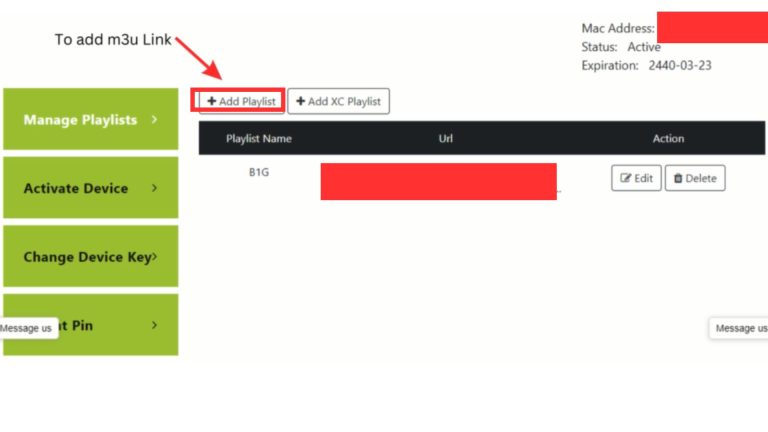
You will be presented with two primary options for adding your channels:
+Add Playlist (M3U Link): This option allows you to add your subscription using the full M3U URL provided by your service provider.
+Add XC Playlist (Recommended): This option is for the Xtream Codes API method (Server URL, Username, and Password).
While both options will load your content, we highly advise clicking +Add XC Playlist if you have your Xtream Codes credentials, as this offers better performance, EPG integration, and stability.
If you must use the M3U link, click on the +Add Playlist option to proceed with the M3U URL.
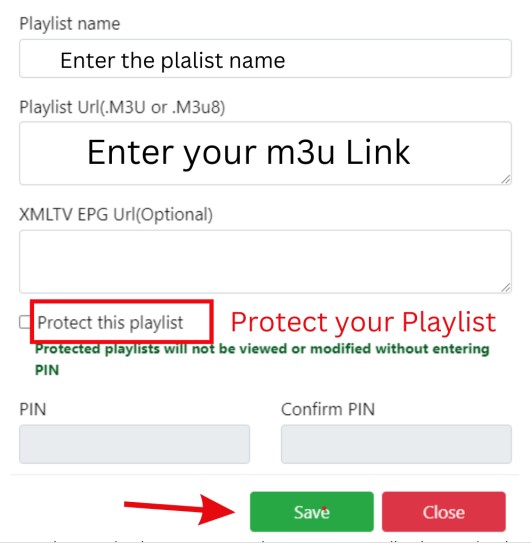
After clicking the +Add Playlist button, the portal will present the necessary fields for adding your M3U link and a descriptive name.
Enter Playlist Name: In the first field (often labeled “Playlist Name” or similar), enter a memorable, descriptive name for your service (e.g., “Premium TV,” “My Channels,” or the name of your provider). This name will appear inside the IBO Player Pro application.
Input the M3U URL: In the main URL field, carefully paste the complete M3U Link provided by your IPTV service provider. This URL is a single, long web address that contains all your channel and content data.
Confirm and Save: Locate the “Save” or “Upload” button at the bottom of the form and click it to finalize the playlist integration.
Your M3U playlist is now linked to your IBO Player Pro application via the MAC Address and Device Key you entered previously.
This is the final, essential step to get your channels to appear on your Smart TV.
Return to the TV: Go back to your television where the IBO Player Pro app is running.
Restart the Application: Fully exit the application and launch it again. If the playlist does not appear immediately, it is best to perform a full restart of your Smart TV (power it off and back on).
Synchronization Complete: Upon relaunch, the application will synchronize with the uploaded playlist. You will see the name you provided in the portal, and when you select it, all your Live TV, VOD, and Series will be ready for viewing.
The IBO Player Pro application is known for its robust performance and user-friendly features, providing an excellent platform for enjoying your IPTV service:
Seamless Video Playback: Supports numerous video formats with smooth, high-quality playback.
Comprehensive Playlist Management: Easily organize, access, and manage your entire channel and content library.
High-Quality Audio: Delivers high-fidelity audio playback for all media content.
Customization Options: Offers settings for adjusting playback speed, subtitles, and video quality to match your preferences.
Streaming Capability: Designed to reliably handle streaming from various online sources, including long-form VOD libraries.
| Question | Answer |
| Is IBO Player Pro a free application? | No. IBO Player Pro operates on a trial model. It offers a short free trial (usually 7 days), after which you must pay a small, one-time activation fee directly to the app developers. This fee is essential to keep using the player and is separate from your IPTV subscription cost. |
| Where do I pay the IBO Player Pro activation fee? | Payment is made on the official IBO Player Pro management portal (the same website you use to link your playlist). You simply select the “Activate App” option after entering your MAC Address and Device Key. |
| Why is the MAC Address and Device Key required? | These are two unique identifiers that IBO Player Pro uses to lock the app’s license and your playlist to your specific Smart TV hardware. This ensures security and prevents unauthorized use of your subscription. |
| I was using Duplex Play. Is IBO Player Pro a good replacement? | Yes. IBO Player Pro is widely considered the best alternative to Duplex Play (which was removed from some app stores). It offers a very similar, highly stable, and feature-rich interface for streaming. |
| Question | Answer |
| My channels aren’t appearing after I saved the playlist. What’s wrong? | The most common issue is failure to refresh. You must fully restart the IBO Player Pro application (or reboot your Smart TV entirely). If the playlist still fails to load, check that you correctly pasted the full M3U URL into the portal and that your subscription is active. |
| Can I use my Xtream Codes API login instead of an M3U link? | Yes, and we highly recommend it! When you manage the playlist on the IBO Player Pro portal, look for the +Add XC Playlist option. Using Xtream Codes ensures better performance, stability, and superior EPG (TV Guide) synchronization. |
| What does the “Device Key” do? | The Device Key acts as a secondary verification code, working in conjunction with your MAC Address to confirm your ownership of the application on that specific television. |