

Looking to install IPTV Smarters Pro on your Android device? Follow this simple guide to get started with live TV, movies, and series on your phone, tablet, or Android TV. Before you begin, there are a few key points to keep in mind: IPTV Smarters Pro is not available on the Google Play Store, so you will need to download the APK file from a trusted source.
Open your preferred browser on your Android device.
Search for “IPTV Smarters Pro APK” to find the official download link.
Download the APK file to your device.
Follow the installation prompts to complete the setup.
Once installed, open the app, enter your IPTV service credentials, and start streaming live TV, movies, and series.
| Latest Update for IPTV Smarters Pro | |
|---|---|
| Application Name | Smarters Pro |
| Version | (v1.1.3 |
| File Size | 84.4 MB |
| Developer | WHMCS SMARTERS |
| Installs | 10M+ |
| Last Updated | October 2025 |
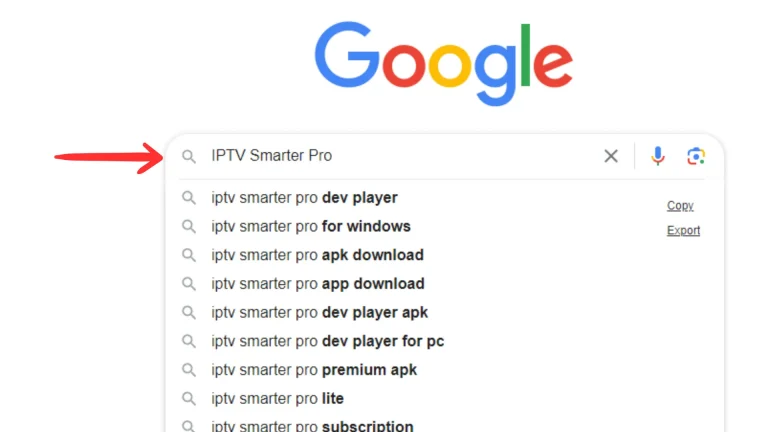
IPTV Smarter Pro is a trusted third-party IPTV application designed specifically for Android devices. Despite being third-party, the app is fully original and secure, developed by Stannar, ensuring complete safety for your device.
Important Note: This guide focuses exclusively on Android phones and tablets. It does not cover Firesticks or other streaming devices. After installing IPTV Smarter Pro, you will need a playlist from an IPTV service provider—either from us or another trusted provider. The app itself does not include any content or channels; it simply provides a platform to stream live TV, movies, series, and other content using playlists.
Some Android devices may not have Developer Options enabled by default. If your device doesn’t, you’ll need to enable them to install third-party apps safely.
Enabling Developer Options on your Android device is straightforward. Follow these steps:
Go to Settings
Open the Settings app on your Android device. You can access it from your app drawer or by swiping down from the top of the screen and tapping the gear icon.
Open About Phone
Scroll down in the Settings menu and select About Phone. The placement may vary depending on your device, but it’s usually at the bottom of the menu.
Find Build Number
Tap About Phone and look for Build Number or Software Information. Tap it 7 times until a message appears: “You are now a developer!”. You may need to enter your PIN or unlock pattern to confirm.
Access Developer Options
Go back to the main Settings menu. You will now see Developer Options or Developer Settings. Tap it to open the menu.
Enable Developer Options
Toggle the switch at the top to enable Developer Options. If prompted, confirm by tapping OK or Enable.
Once Developer Options are enabled, you can safely install IPTV Smarter Pro APK files.
Step 1: Copy the IPTV Smarter Pro APK link provided below. Open any browser on your Android device, paste the link, and press Search.
Step 2: The APK file will start downloading automatically. The file size is approximately 80 MB.
For the complete installation guide and setup instructions, please read our full article: [Easily Install IPTV Smarter Pro on Android Phone].
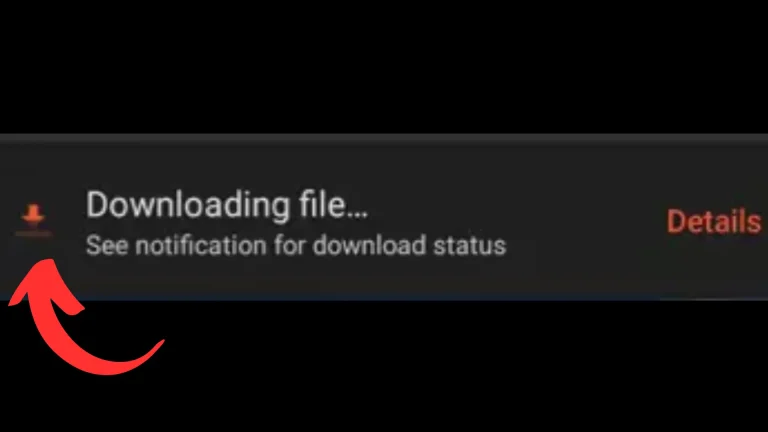
After downloading the IPTV Smarter Pro APK, tap the file to start installation. Ensure Developer Options and Install Unknown Apps are enabled.
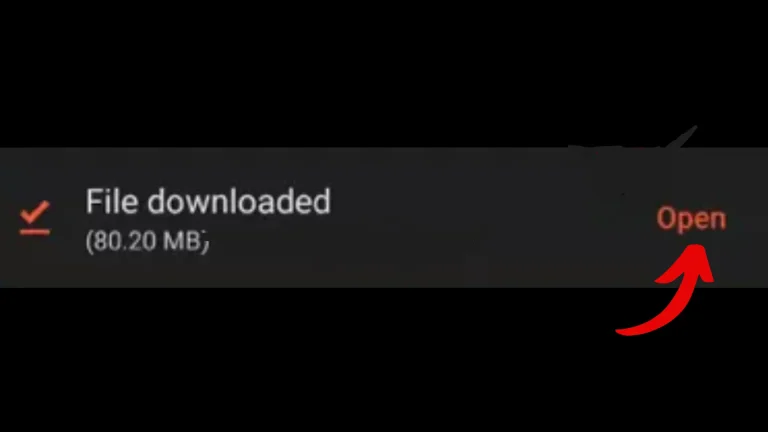
Open the APK, and when prompted, review the installation screen. Scroll down and tap Install to proceed.
The device will show a confirmation interface. Tap Install again to begin installing IPTV Smarter Pro on your Android device.
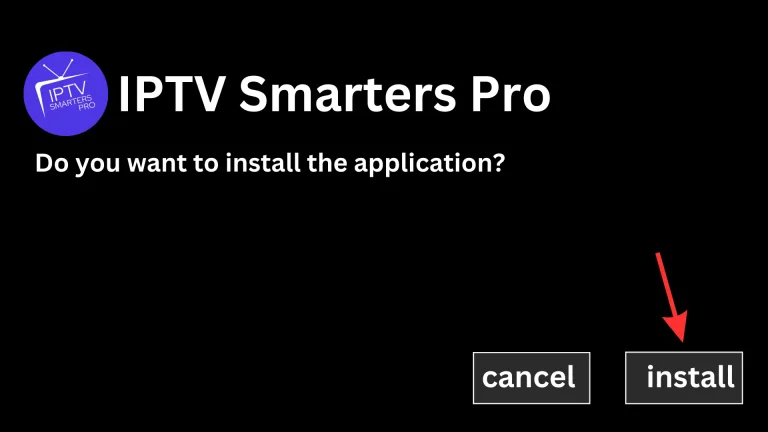
Once the installation is complete, tap Open to launch the IPTV Smarter Pro app on your Android device.
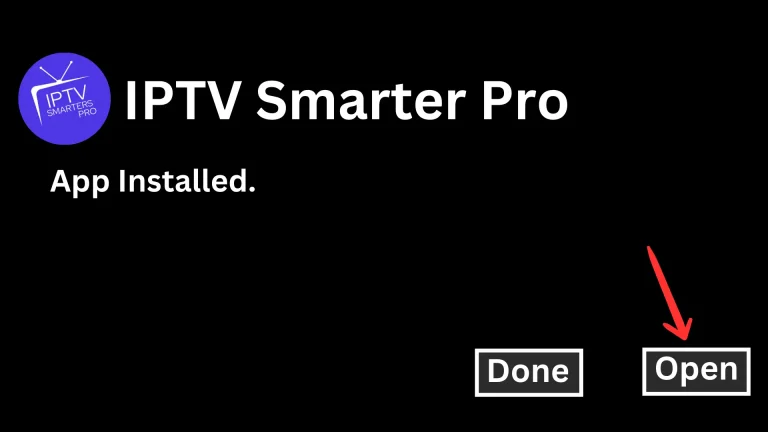
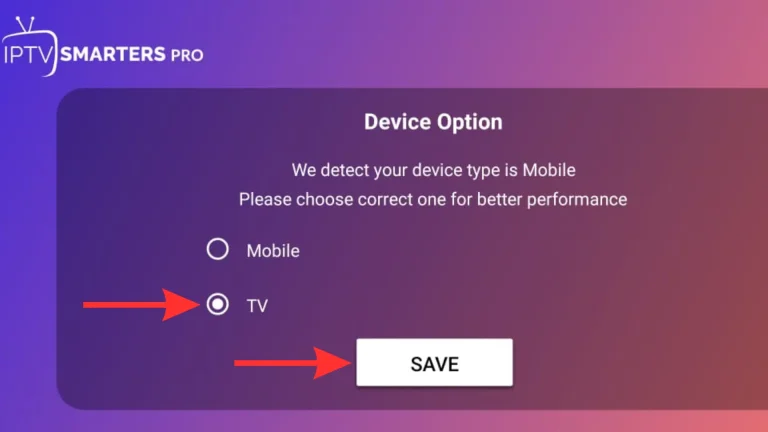
After launching the app, it will start successfully. You’ll see two options: Mobile or TV. Choose TV and save the selection to continue.
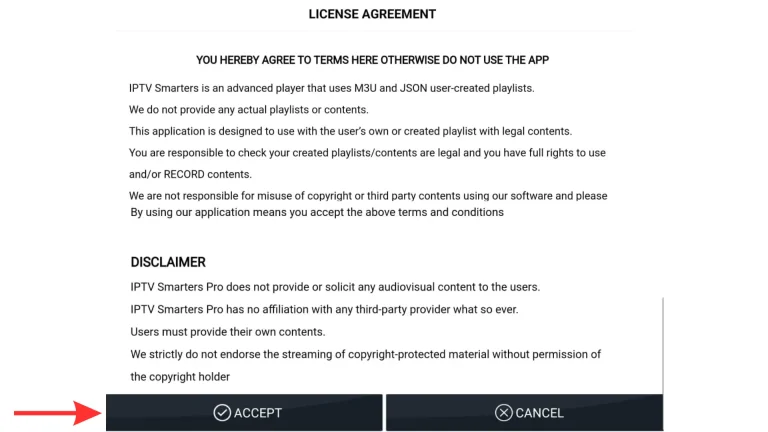
Next, the License Agreement screen will appear. Scroll to the bottom and tap Accept to proceed.
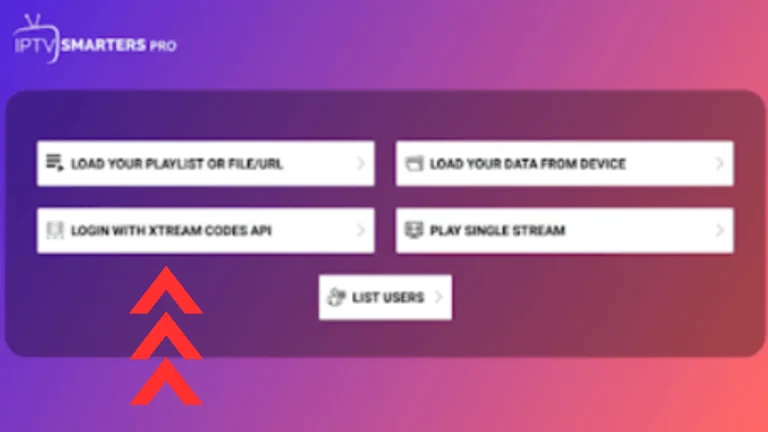
A screen with four options will appear. Select the third option: Login with Xtream Codes API.
After selecting Login with Xtream Codes API, you’ll see a screen prompting you to enter your login details: username, password, and URL. These credentials are provided by us or your IPTV service provider. This is commonly referred to as Xtream Codes or Login Details.
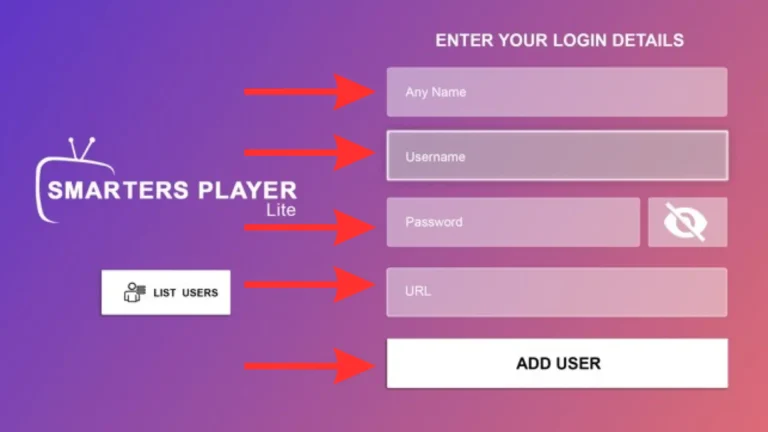
Once you have entered your username, password, and URL, click on Add User to save your IPTV account and proceed to access your playlists and channels.
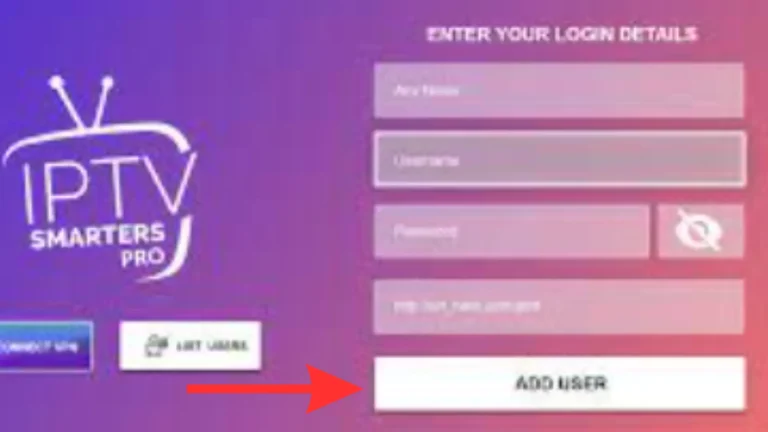
You can choose to save your login information by enabling the option to remember your credentials. This ensures quicker access next time without re-entering your details.
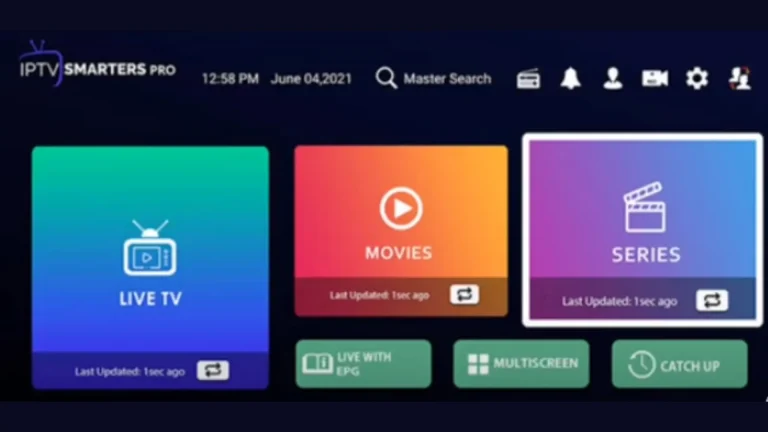
Once logged in, three main options will appear:
Live TV – Stream all live channels.
Movies – Access on-demand movies.
Series – Watch your favorite series.
Make sure to download or access all three sections to enjoy the full IPTV experience.
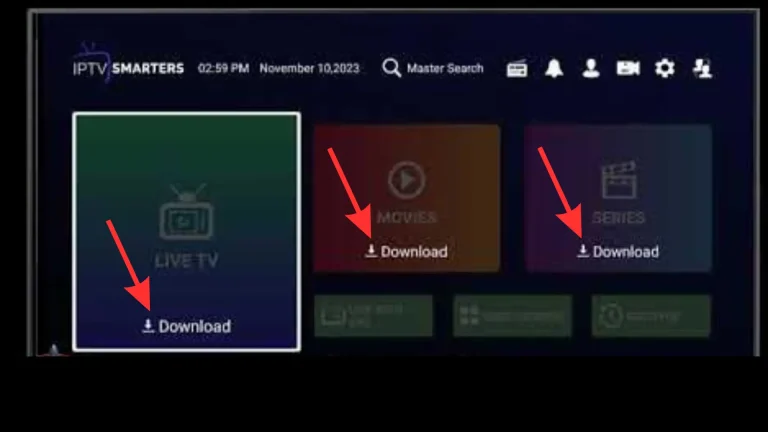
Once the download is complete, your IPTV Smarter Pro app is ready to use. You can now:
Click on Live TV to stream live channels.
Click on Movies to watch on-demand movies.
Click on Series to enjoy your favorite TV series.
Your Android device is now fully set up to enjoy IPTV content seamlessly.
A: Yes, IPTV Smarter Pro is a trusted application. It is safe to install from official or trusted sources. Make sure you download the APK from verified links to avoid modified or unsafe versions.
A: No, you don’t need to root your device. You only need to enable Developer Options and allow installation from unknown sources.
A: Go to Settings > About Phone > Build Number, tap it 7 times until you see “You are now a developer!” Then go back to Settings > Developer Options > Enable Unknown Apps.
A: No, the app itself does not provide content. You need a playlist from an IPTV service provider to watch channels, movies, or series.
A: Yes, after adding your Xtreme Codes login, you can save your credentials for easy access in the future.
A: Yes, IPTV Smarter Pro supports all three: Live TV, Movies, and Series. You just need to download each category after logging in.
A: Check that you entered the login credentials correctly, ensure your internet connection is stable, and verify that your playlist is active with your IPTV provider.