
Get started with your Amazon Fire TV Stick in just a few minutes. This step-by-step guide will help you set it up on your TV for the very first time — quickly and effortlessly.
Whether you own the Fire TV Stick 2nd or 3rd Gen, Fire TV Stick Lite, Fire TV Stick 4K / 4K Max, the New Fire TV Stick 4K / 4K Max, or even a Fire TV Cube, this guide has you covered.
Once your Fire Stick is set up, you’ll be ready to enjoy your favourite streaming apps like Netflix, Prime Video, YouTube, Disney+, and many more. But before diving into your favourite shows and movies, let’s walk through the proper setup process to ensure everything runs smoothly.
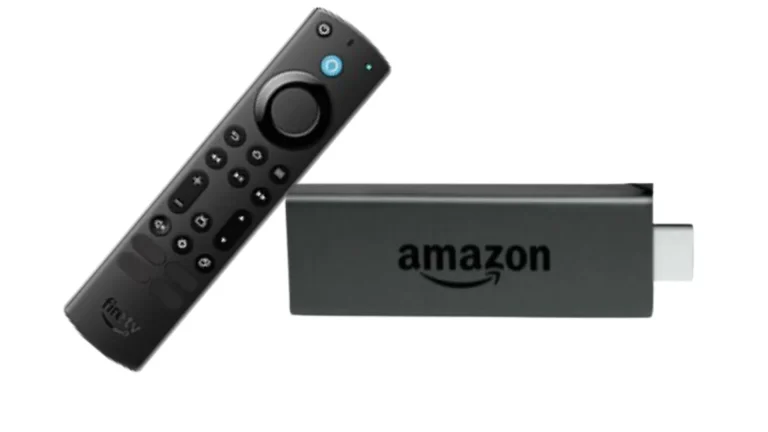
To begin setting up your Amazon Fire TV Stick, plug the device into an electrical outlet using the power adapter that comes in the box.
Insert one end of the USB power cable into your Fire TV Stick.
Connect the other end of the cable to the power adapter.
Finally, plug the adapter into a wall outlet to power up your device.
Once connected, your Fire Stick will begin to boot up — and you’re ready to move on to the next step of the setup process.
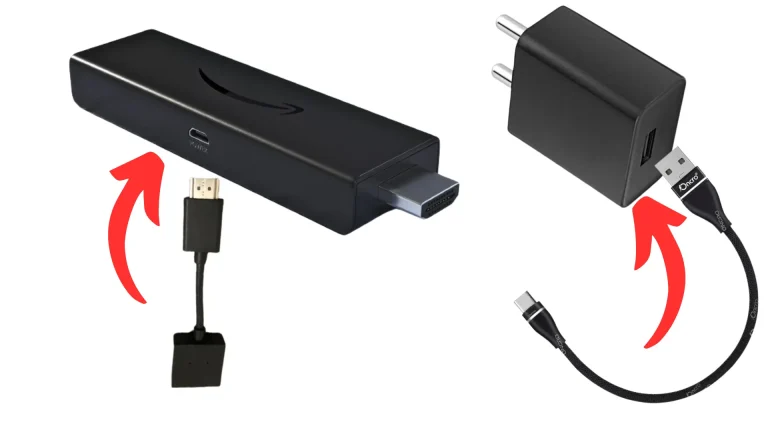
Next, insert your Amazon Fire TV Stick into an available HDMI port on the back or side of your television.
Locate the HDMI input port on your TV (it’s usually labeled as HDMI 1, HDMI 2, etc.).
Gently plug your Fire TV Stick into that HDMI port.
If your TV’s HDMI ports are hard to reach or already in use, you can use the HDMI extender that comes with the Fire Stick for a better fit and stronger signal reception.
Make sure the connection is secure so your device can transmit both audio and video properl
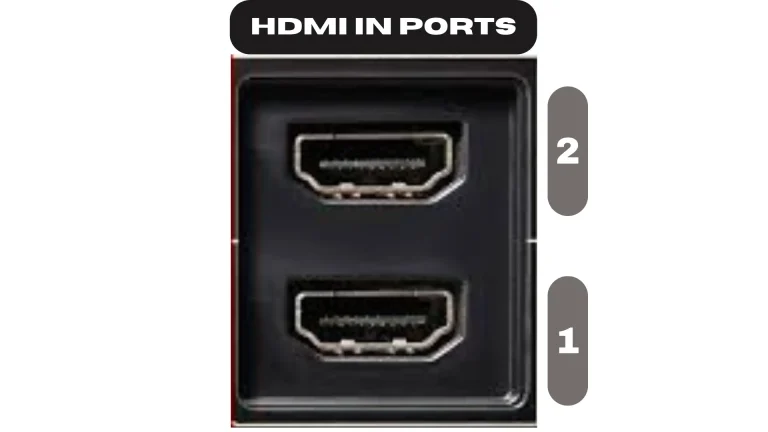
Once your Fire TV Stick is connected, you’ll need to switch your TV to the correct HDMI input to view the Fire Stick setup screen.
Here’s how to do it:
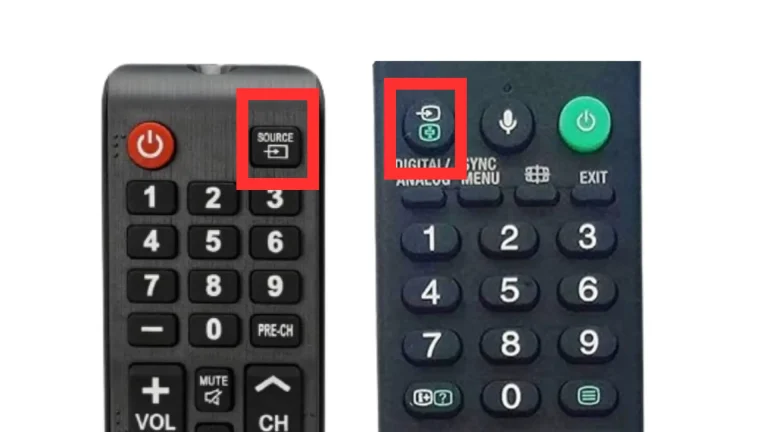
Pick up your TV remote and press the “Source” or “Input” button (usually located near the top of the remote).
A list of available input options (like HDMI 1, HDMI 2, AV, etc.) will appear on your screen.
If you plugged your Fire Stick into HDMI 2, select HDMI 2 from the list.
Wait a few seconds, and the Amazon Fire TV Stick setup screen should appear.
Now your TV is tuned to the correct channel, and you’re ready to continue setting up your Fire Stick.
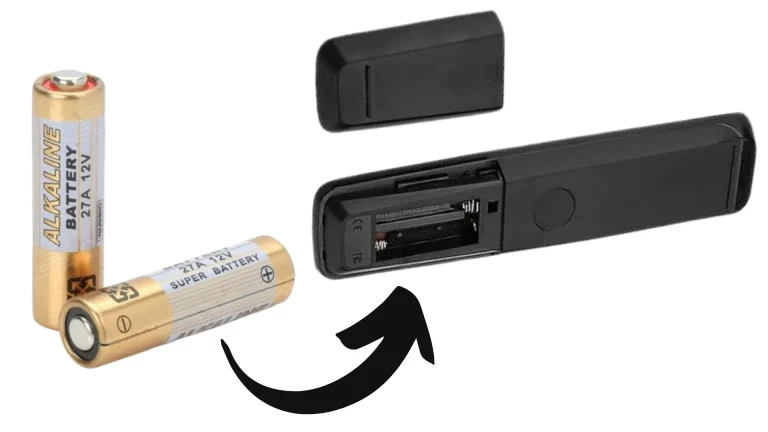
Next, prepare your Fire TV remote by inserting the batteries:
Remove the back cover of the Fire TV remote.
Place the two AAA batteries provided with your Fire Stick into the slots, following the + and – symbols to ensure correct alignment.
Slide the cover back on until it clicks into place.
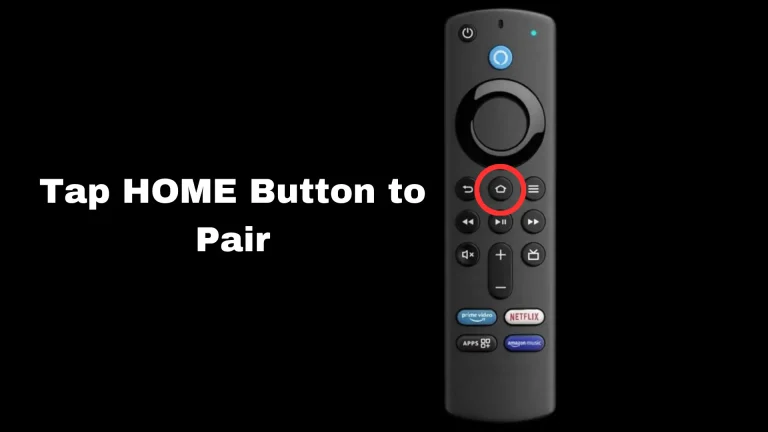
Once the batteries are inserted, your Fire TV remote will automatically pair with the Fire Stick. If it doesn’t pair automatically, you can hold the Home button for 10 seconds to connect it manually.
Once you’ve inserted the batteries, press and hold the Home button on your Fire TV remote for about 10 seconds.
This will allow your remote to pair automatically with the Fire TV Stick.
If pairing doesn’t happen right away:
Make sure your Fire Stick is powered on and connected to the TV.
Move closer to the device and try holding the Home button again until you see the confirmation message on your screen.
Once paired, your Fire TV remote is ready to control the device and navigate through the setup process.
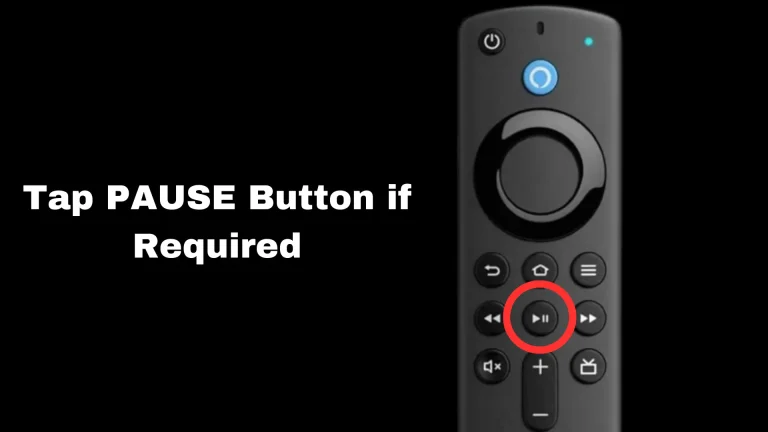
After your Fire TV remote has been paired successfully, you’ll see an on-screen prompt asking you to press the Play/Pause button to proceed.
Simply press the Play/Pause button on your Fire TV remote to begin the setup process.
This action confirms your connection and moves you to the next step, where you’ll select your preferred language and Wi-Fi network.
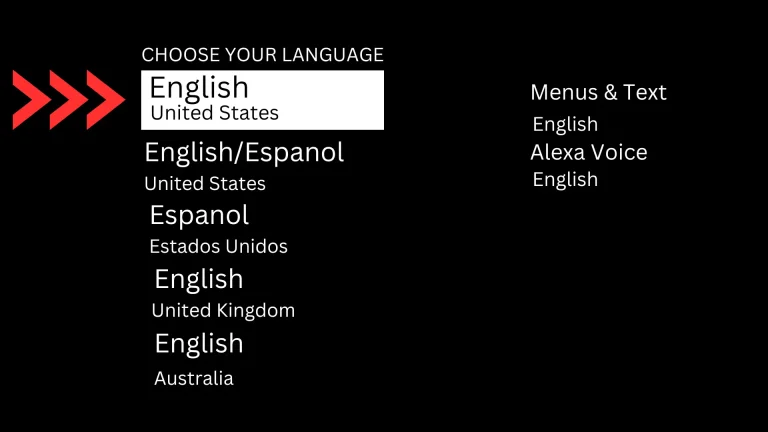
Once the setup screen appears, you’ll be asked to choose your language.
Using your Fire TV Stick remote, navigate through the list of available languages.
When you find your preferred language, press the middle (select) button on the remote — the circular button located at the center of the navigation ring — to confirm your selection.
This ensures that all menus and instructions will be displayed in the language you’re most comfortable with.
Next, you’ll need to select how you want to set up your Fire TV Stick.
You’ll be given two main options — you can set it up as a new device or restore settings from a previous Fire TV device.
If this is your first time using a Fire Stick, choose “Set Up as New.”
If you’ve used one before and want to keep your previous apps and preferences, select “Restore.”
Follow the on-screen instructions to continue — the next steps will guide you through connecting your device to the internet and your Amazon account.
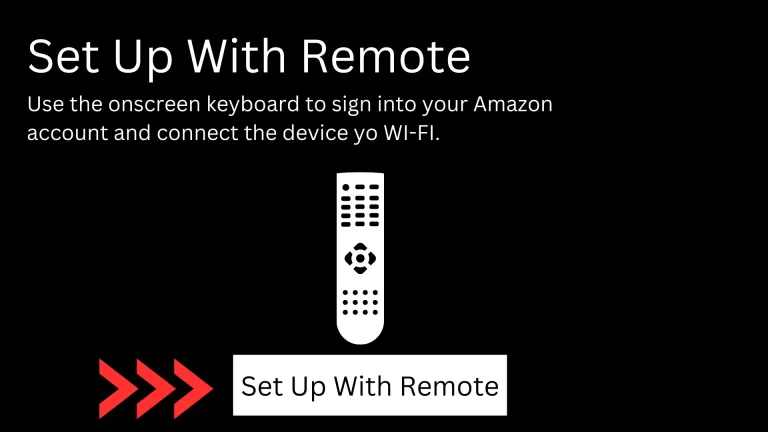
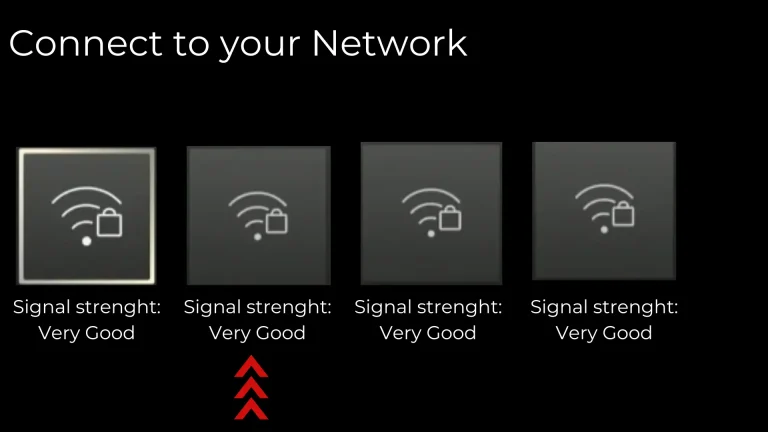
Next, you’ll need to connect your Fire TV Stick to a Wi-Fi network.
Use the right and left navigation buttons on your Fire TV remote to browse through the list of available networks.
Once you find your Wi-Fi name, select it, then enter your Wi-Fi password using the on-screen keyboard.
After entering the password, click “Connect” to link your Fire TV Stick to the internet.
A stable Wi-Fi connection is essential for smooth streaming and fast app downloads.
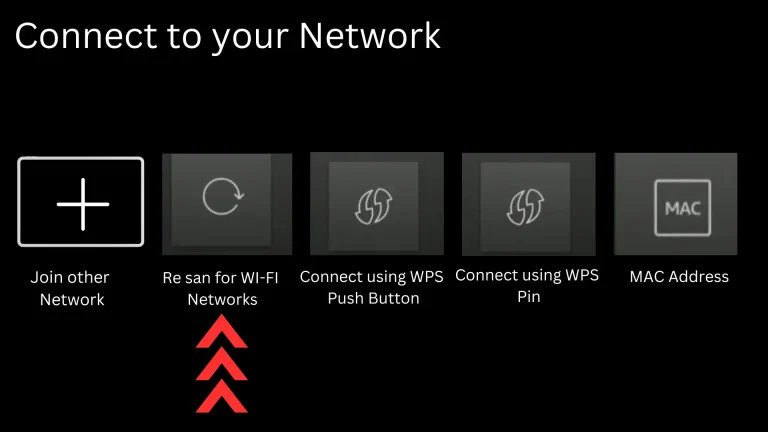
If you can’t find your Wi-Fi network, try scrolling to the right and selecting “Re-Scan for Wi-Fi Networks.”
If your network still doesn’t appear, choose “Join Other Network” and manually enter your network name (SSID).
This will help your Fire TV Stick detect and connect to your home Wi-Fi successfully.
Next, enter your Wi-Fi password (the one set for your router) using the on-screen keyboard.
Once you’ve entered it correctly, press the Play/Pause button on your Fire TV remote to confirm.
Your Amazon Fire TV Stick will then automatically connect to your Wi-Fi network, preparing your device for setup and streaming.
To set up your Fire TV Stick 4K, connect it to your TV’s HDMI port, plug it into a power source, pair the remote, select your language, and connect to your Wi-Fi. Once done, sign in with your Amazon account to start streaming.
Yes, an Amazon account is required to activate and use the Fire TV Stick. You can either use your existing account or create a new one during the setup process.
You can use it on any TV that has an HDMI port and supports HD or 4K resolution. An active internet connection is also required for streaming content.
If your Fire Stick isn’t connecting to Wi-Fi, make sure you’ve entered the correct password. Try selecting Re-Scan for Wi-Fi Networks or Join Other Network to manually enter your network name. Restarting your router and device can also help.
Hold down the Home button on your Fire TV remote for about 10 seconds. Once paired, the remote will automatically control your Fire Stick.
Yes, you can easily download apps like Netflix, YouTube, Disney+, and Prime Video from the Amazon App Store on your Fire TV Stick.
Check that your Fire TV Stick is securely plugged into an active HDMI port, and your TV input source is correctly set (e.g., HDMI 1 or HDMI 2). If the issue persists, try using another HDMI port or restarting your device.